
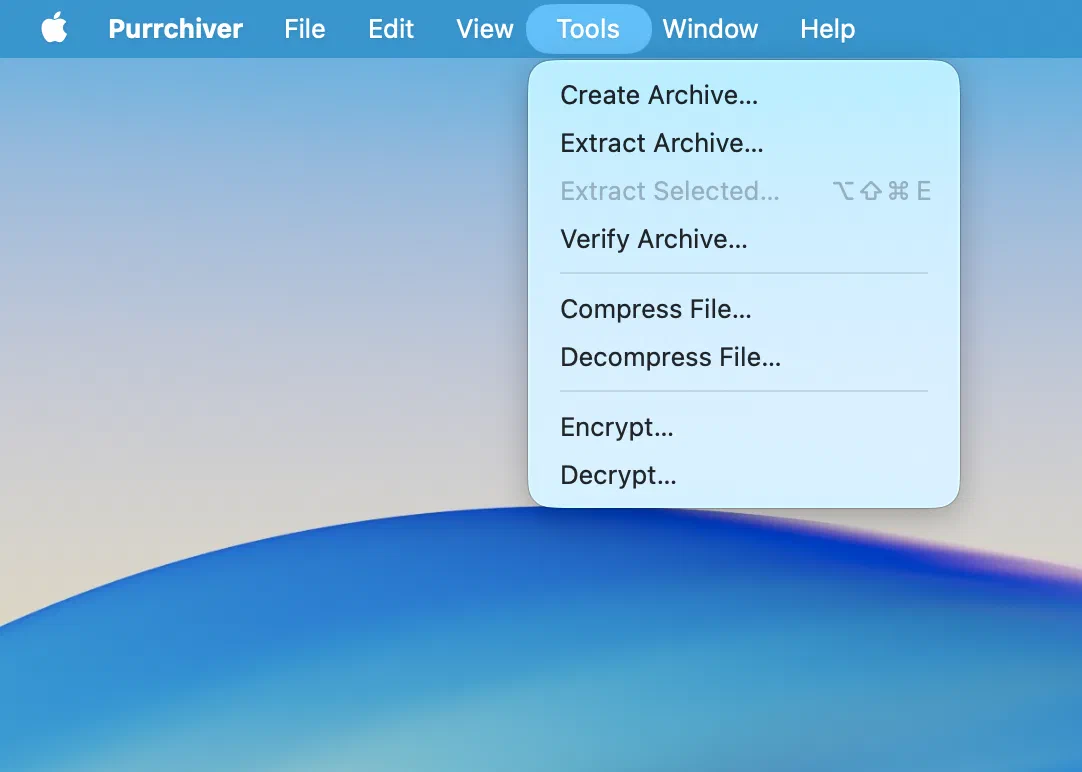
The Tools menu in Purrchiver’s menu bar is a catalog of standalone “pick-and-do” verbs. Each one opens its own file picker, so you can start any job straight from the menu bar without first dropping files or opening a window. It’s also full menu-bar parity for keyboard and VoiceOver users, who can reach every core action this way.
The verbs
| Item | What it does |
|---|---|
| Create Archive… | Pick files/folders and build a new archive — opens the Create staging flow. |
| Extract Archive… | Pick one archive and extract it to its sibling folder. |
| Extract Selected… (⌘⌥⇧E) | The one contextual item — enabled only when a loaded archive has rows selected, it extracts just those. Menu-bar parity for the loaded table’s right-click “Extract Selected to…”. |
| Verify Archive… | Pick one archive and run a full integrity check without extracting. |
| Compress File… | Compress a single file to a stream format (gzip, xz, Zstandard, Brotli, …). |
| Decompress File… | Reverse a single-stream file back to the original. |
| Encrypt… | Wrap a file in a passphrase-based age envelope. |
| Decrypt… | Reverse an age envelope back to the original. |
The catalog is symmetric — every “make” verb has its inverse: Create/Extract, Compress File/Decompress File, Encrypt/Decrypt.
Free vs. the unlock
The menu items themselves are always present. What each does follows the normal tiering: extracting, verifying, decompressing, and decrypting are free; creating advanced formats, compressing to an advanced stream, and any encryption are part of the one-time $9.99 unlock. See What’s free vs. the unlock.
The same verbs elsewhere
These aren’t menu-only — the same actions are available as:
- Finder Services — right-click a selection (see Finder integration).
- Shortcuts actions — for automation (see Shortcuts & automation).
The Tools menu is just the always-there, no-selection-required home for them.