
Purrchiver integrates with Apple’s Shortcuts app with a full set of composable actions, so you can drop archiving into any automation — a Finder Quick Action, a folder-action, a menu-bar shortcut, or a spoken Siri request — without a script or the command line.
Some Shortcuts actions are free; the advanced create formats and all encryption authoring need the one-time $9.99 unlock. See What’s free vs. the unlock.
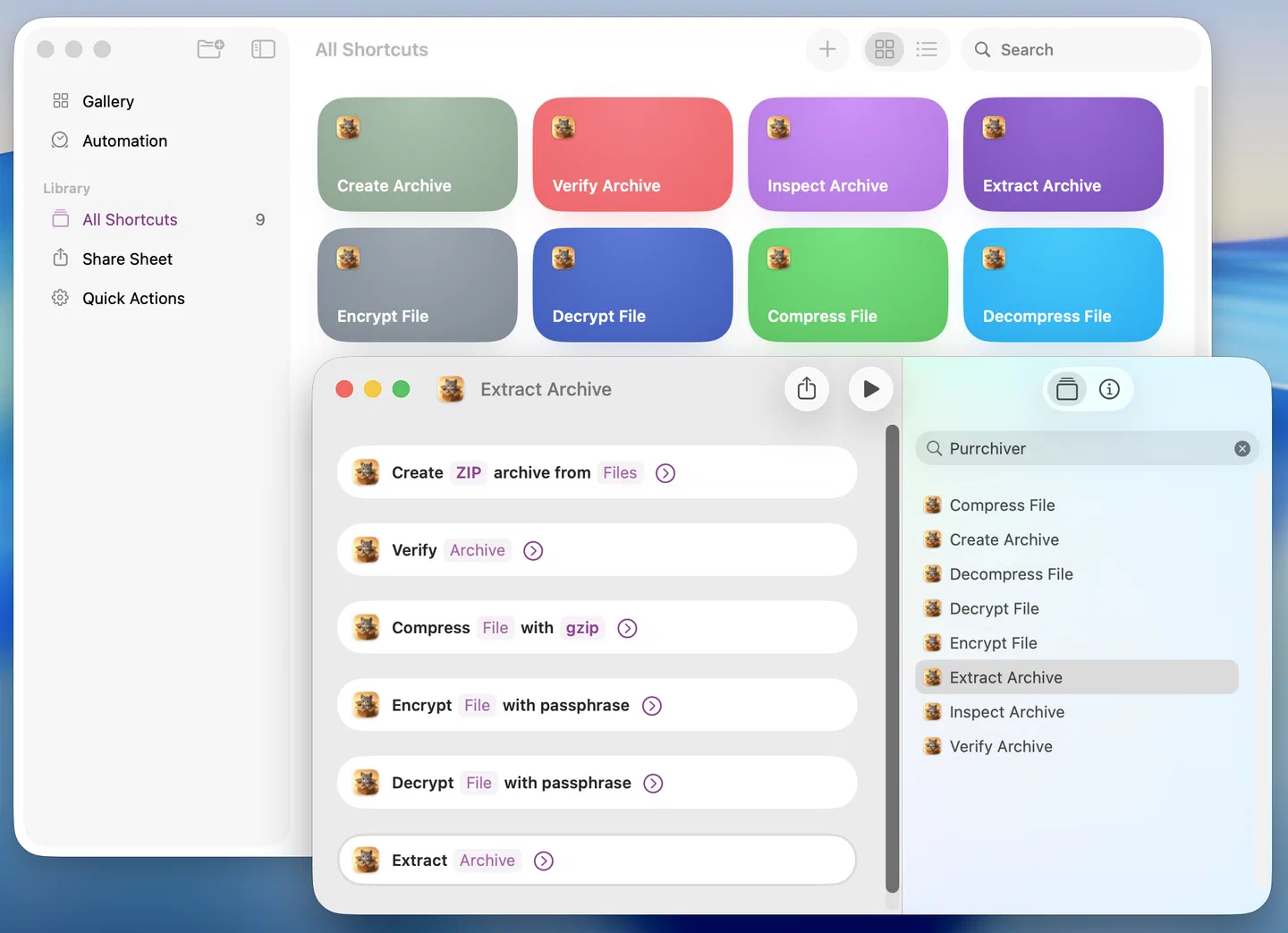
The actions
The catalog is symmetric — every create has its extract, every encrypt its decrypt:
| Action | What it does | Parameters | Returns |
|---|---|---|---|
| Extract Archive | Extracts an archive. | Archive (file), Password (optional) | The extracted files (a list you can save or iterate over) |
| Create Archive | Compresses files into a new archive. | Files, Format (default ZIP), Archive Name (default “Archive”), Password (optional) | The created archive file |
| Verify Archive | Reads every entry to confirm the archive is intact, without extracting. | Archive (file), Password (optional) | Whether the archive is intact (true/false) |
| Inspect Archive | Lists an archive’s entries and metadata without extracting. | Archive (file), Password (optional) | Structured entries (name, size, isDirectory) you can iterate or filter over |
| Compress File | Compresses a single file to a stream format (gzip, xz, Zstandard, Brotli, …). | File, Format | The compressed file |
| Decompress File | Decompresses a single-stream .gz / .xz / .zst / .br / … file. | File | The decompressed file |
| Encrypt File | Wraps a file in a passphrase-based age envelope. | File, Passphrase | The .age-encrypted file |
| Decrypt File | Decrypts an age-encrypted file back to the original. | File, Passphrase | The decrypted file |
Each action’s output flows into the next step of your shortcut — extract to a folder and then move it, create an archive and then share it, test an archive and branch on the result.
Running them by voice or search
Because these are registered App Shortcuts, they also show up in Spotlight and work with Siri using natural phrases:
- “Extract an archive with Purrchiver” (also “Unarchive…”)
- “Create an archive with Purrchiver” (also “Compress files…”, “Make an archive…”)
- “Verify an archive with Purrchiver” (also “Test…”, “Check…”)
Passwords in automation
The Password parameter is optional on every action:
- Leave it empty for unencrypted archives.
- For Create Archive, supplying a password produces an AES-256 encrypted archive (ZIP or 7z), or — for the AAR format — an encrypted Apple Archive (the password must be at least 32 characters).
- For Extract Archive / Verify Archive, supply the password an encrypted archive needs.
A password you pass through Shortcuts is used for that run only — Purrchiver never stores it. If you hard-code a password into a saved shortcut, treat that shortcut as a secret. For interactive runs, use Shortcuts’ Ask Each Time so the password isn’t saved in the shortcut. See Encrypted archives for the password model.
Example shortcuts
- Extract to a specific folder on a schedule — Extract Archive → Repeat with each extracted file → Move File to your sorted-downloads folder.
- Make a dated backup — Create Archive (Format: 7z) → Rename with the current date → Save File.
- Verify a download before you trust it — Verify Archive → If intact → continue; otherwise notify.
What’s not here (yet)
- No command-line tool in this version. Automation in v1.0 is via the Shortcuts actions above. A CLI is on the roadmap, not shipping today — if a terminal workflow matters to you, email corey@purrchiver.app; user signal sets priority.
Related
- Creating a new archive — the same formats and encryption, in the app
- Compress or encrypt a single file — the single-file verbs behind Compress File / Encrypt File
- The Tools menu — the same actions from the menu bar
- Extracting files — the interactive extract flow
- Encrypted archives — how passwords work