
Open Settings via Purrchiver menu → Settings… (⌘,). Six panes: General, File Types, Compression, Finder, Advanced, and About.
Purrchiver’s settings are short and honest. There are no monetization toggles, no analytics consent, no “rate this app” preferences. Every pane fits on one screen.
General
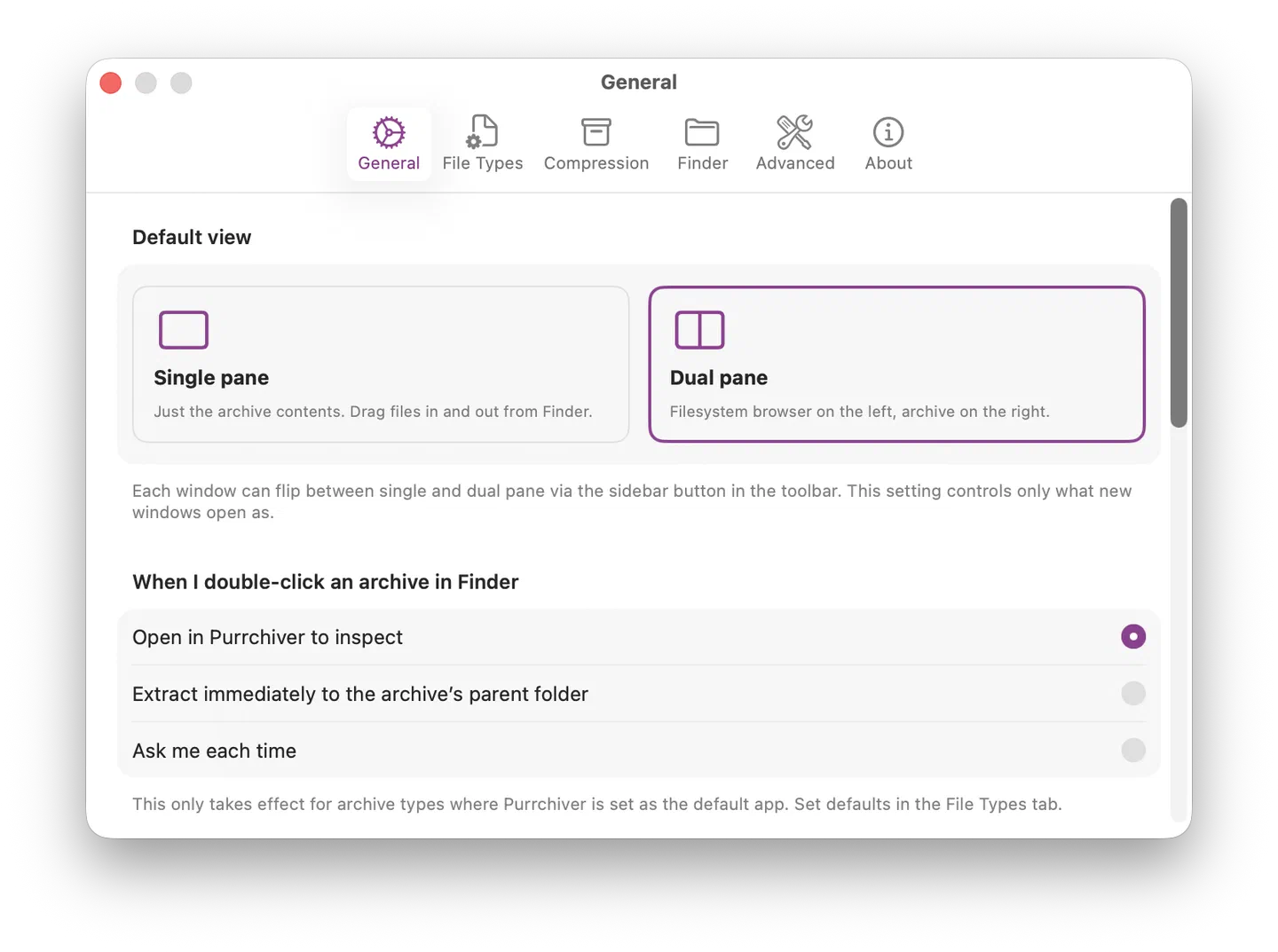
| Section | Default | What it does |
|---|---|---|
| Default view | Single pane | What new windows open as. Choose Single pane (one column — the right pane only) or Dual pane (filesystem on the left, archive on the right). Any window can flip between modes via the pane-toggle button in its toolbar (⌘⌥S) — this only sets the starting state. |
| When I double-click an archive in Finder | Open in Purrchiver to inspect | Three radio choices. Open in Purrchiver to inspect (browse the contents first), Extract immediately to the archive’s parent folder, or Ask me each time. Takes effect only for formats where Purrchiver is set as the default app — set defaults in the File Types tab. |
| Verify integrity when opening archives | Off | Runs a full integrity check automatically each time you open an archive, showing a green badge when it passes. Off by default — verifying reads the entire archive, which is slow for large files. You can always check on demand with the Test button instead. |
| When opening multiple archives | Follow system preference | Whether each archive gets its own window or they pile into tabs. Choose Follow system preference (honors System Settings → Desktop & Dock → “Prefer tabs when opening documents”), Always open as tabs in one window, or Always open in separate windows. |
| Symbolic links on extract | Recreate symlinks as symlinks | What to do with symlinks inside an archive. Recreate preserves them (best for same-machine round-trips). Follow and extract target contents flattens — useful when the archive came from another machine and the targets aren’t present. Skip drops them (safest when you don’t trust the source). Symlinks pointing outside the extraction folder are always refused regardless of this setting. |
| Notifications | Off | Fires a single macOS notification when an extract or compress finishes — its banner style, sound, lock-screen preview, and Focus behavior follow your System Settings → Notifications → Purrchiver preferences. That’s the only notification Purrchiver ever sends; macOS prompts for permission the first time you enable it. A permanent Customize in System Settings… button jumps straight to that pane. |
| Error reporting | Off | When something goes wrong, Purrchiver offers to open a pre-filled error-report draft in your default mail client. Off by default — turn on if you want to be offered the error-report flow. Reports never include filenames, file contents, or anything identifying — and you read and edit the message before sending. Nothing leaves your Mac until you click Send in Mail. |
File Types
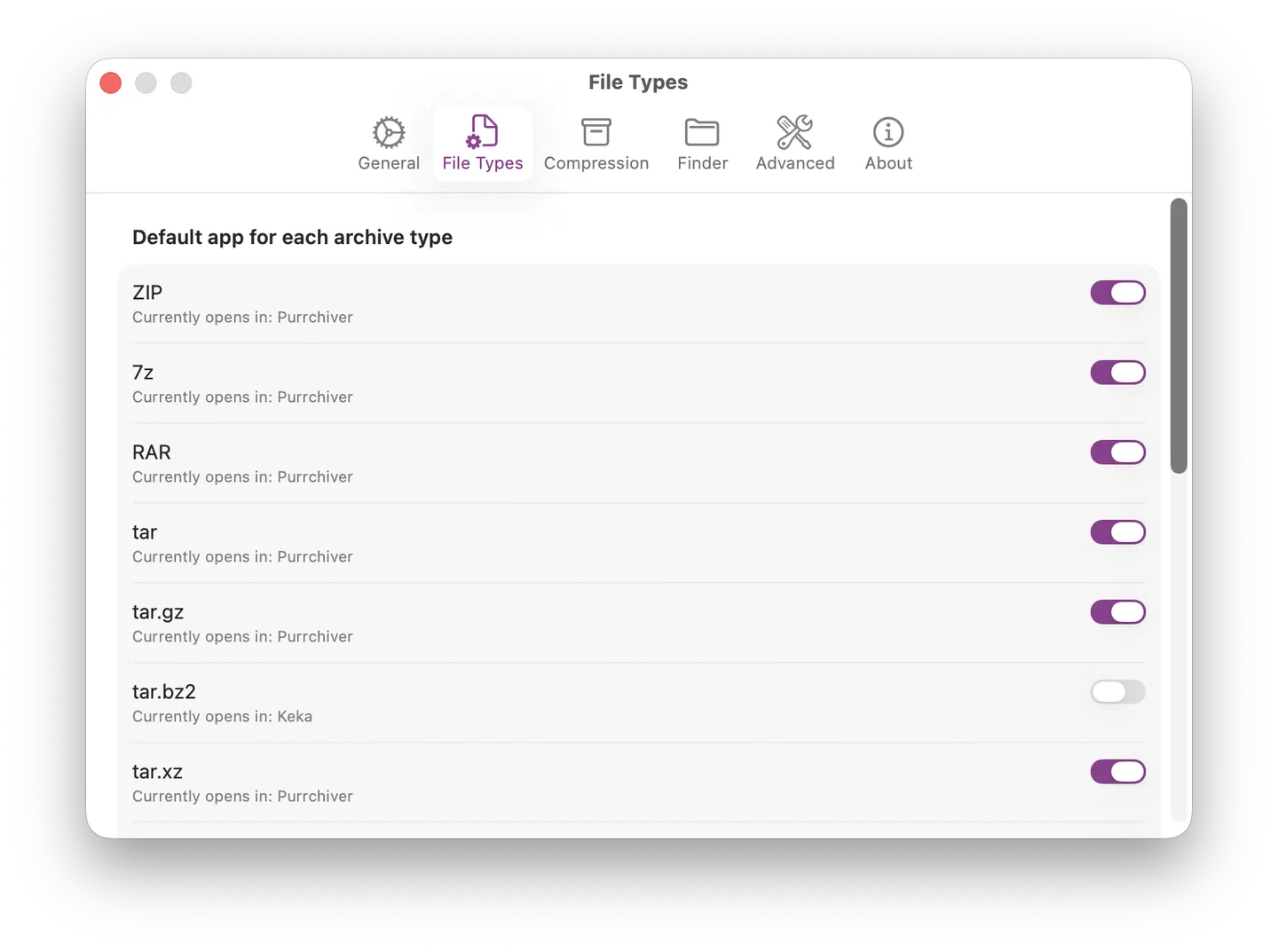
Per-format control over which app macOS launches when you double-click an archive in Finder. One row per archive type Purrchiver supports:
- Each row shows the type name plus a caption telling you the current default handler for that type (“Currently opens in: Purrchiver”, or “Currently opens in: The Unarchiver”, etc.).
- Toggle on to make Purrchiver the default for that type; toggle off and macOS picks the next available handler.
- Make Purrchiver the default for all flips every row at once; Reset all to system defaults removes Purrchiver as the default across all types. A progress bar shows the per-row work while applying bulk changes.
The General tab’s “When I double-click an archive in Finder” picker is what happens after Purrchiver owns the default — this pane controls whether it does.
Compression
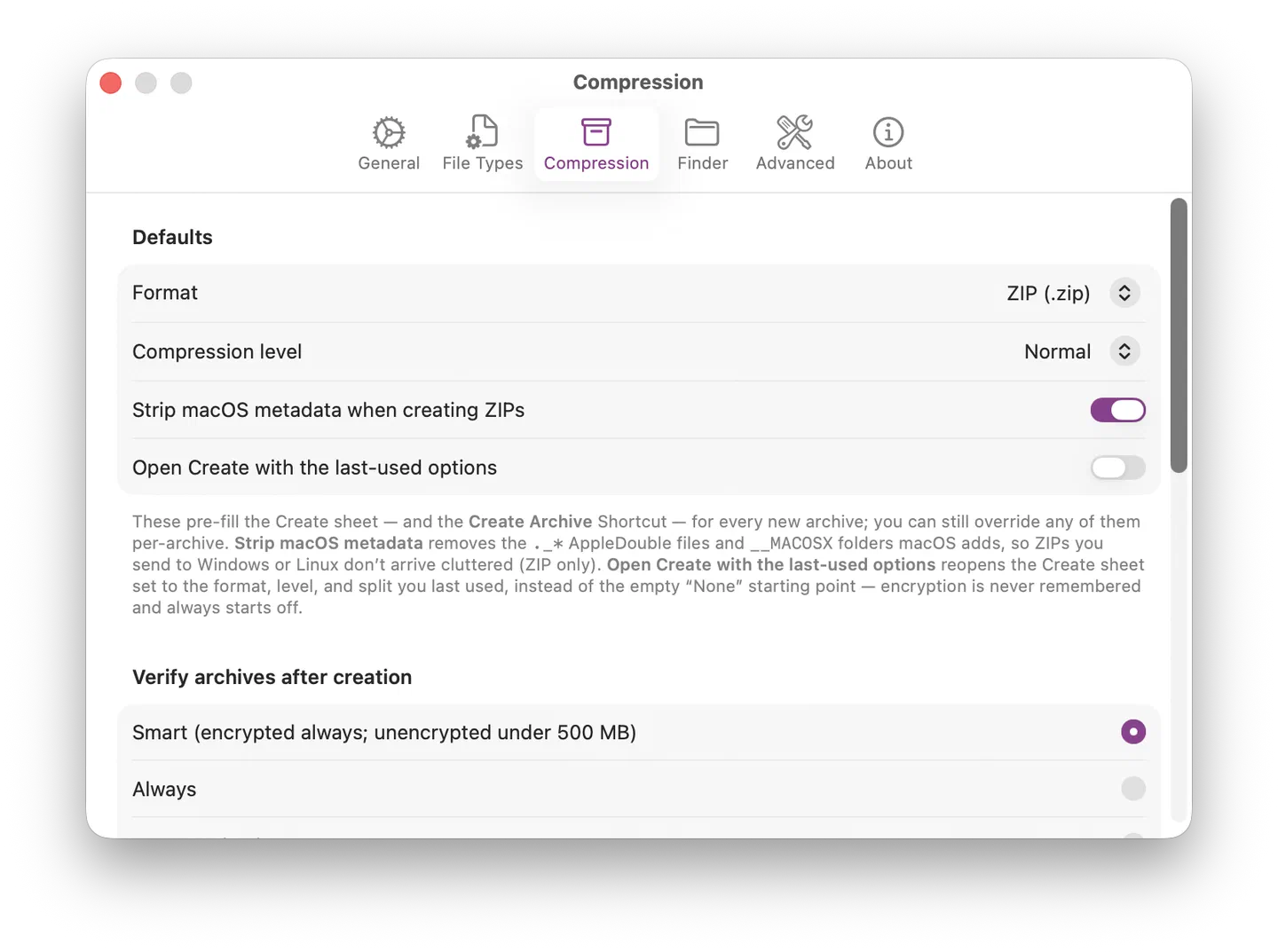
Defaults
| Setting | Default | What it does |
|---|---|---|
| Format | ZIP | Format the Create Archive sheet starts on. Sticky — your last pick wins between operations. |
| Compression level | Normal | Store / Fast / Normal / Best — applied to every leveled format. Encoded into the format-native option (per-filter level for the tar-family + raw single-stream formats; ZIP and 7z use the format’s own level switch). |
| Strip macOS metadata when creating ZIPs | On | Strips the ._* resource-fork sidecars macOS would otherwise embed. Recipients on Windows and Linux see the ZIP without the clutter. ZIP only — 7z, AAR, and tar-family formats handle macOS metadata correctly on their own. |
| Open Create with the last-used options | Off | When on, the Create Archive sheet reopens with the format, level, and other options from your previous create, instead of falling back to the configured defaults. Off by default — each new archive starts from the settings above. |
Verify archives after creation
Four radio choices controlling whether Purrchiver re-opens and walks every freshly-created archive to confirm it’s readable:
- Smart (default) — encrypted archives always; unencrypted archives under 500 MB. Catches corruption + password mistakes on the small-archive cases that bite hardest.
- Always — every archive, regardless of size or encryption.
- Encrypted only — only encrypted archives. Skips the cost on unencrypted output.
- Never — skip verification entirely.
For encrypted archives, verification also confirms the password + AES key derivation round-trip correctly, so you find out about a typo at create time rather than next month when you try to extract.
Symbolic links on compress
Three radio choices — mirror of the extract policy in General:
- Store symlinks as symlinks (default) — small archive, preserves original intent, best for same-machine round-trips.
- Follow and store target contents (flatten) — larger archive, but works on Windows where symlinks often don’t survive.
- Skip symlinks entirely — drops them.
Presets
See Compression presets for the full workflow — picker layout, the Add/Edit sheet, the default-preset semantics, and when to make a new preset vs. just adjust an existing one.
The Presets table shows your saved Create Archive presets — bundles of format + compression + encryption + metadata options you can pick from the dropdown in the staging window’s footer.
Each row shows the preset’s Name (with a “Default” pill if it’s your default), Format, Encryption (—, age, or AES-256), and Modified date. Use the Add Preset…, Edit…, Duplicate, and Remove buttons below the table; right-click a row for Edit…, Duplicate, and Delete preset….
The preset marked “Default” loads automatically every time you start a new archive.
Finder
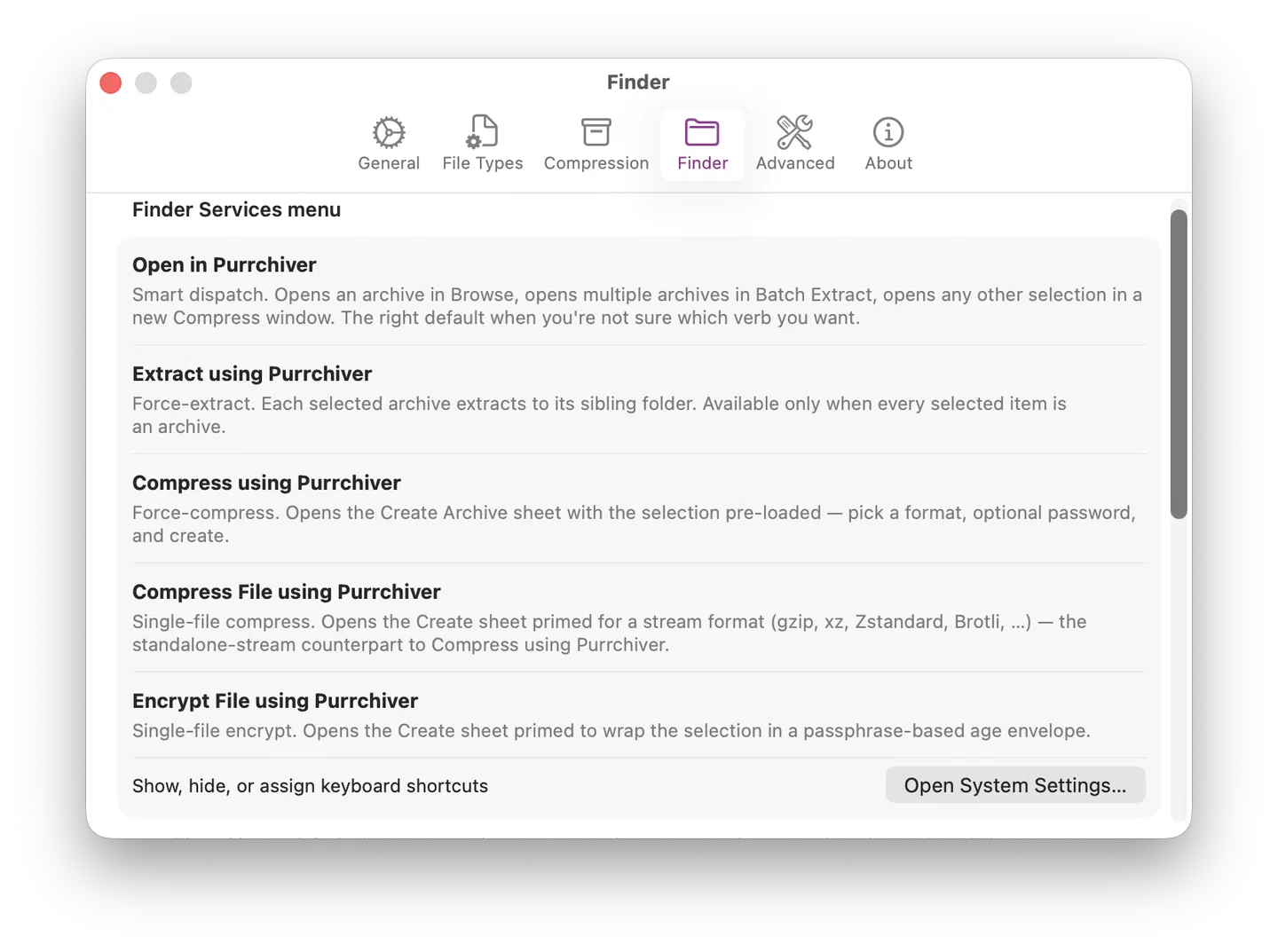
| Item | What it does |
|---|---|
| Open in Purrchiver | Smart dispatch. Opens an archive in Browse, opens multiple archives in Batch Extract, opens any non-archive selection in a new Compress staging window. |
| Extract using Purrchiver | Force-extract. Each selected archive extracts to its sibling folder. Available only when every selected item is an archive. |
| Compress using Purrchiver | Force-compress. Opens a Staging window with the selection pre-loaded as files-to-compress; click Create Archive in the staging footer to pick a format and create. |
| Compress File using Purrchiver | Single-file compress to a stream format (gzip, xz, Zstandard, Brotli, …). Part of the one-time unlock. |
| Encrypt File using Purrchiver | Single-file age encrypt with a passphrase. Part of the one-time unlock. |
All five Services run in-process — there are no separate extensions to install or enable. macOS owns visibility for each item: hide, re-order, or assign keyboard shortcuts under System Settings → Keyboard → Keyboard Shortcuts → Services → Files and Folders. The pane has an Open System Settings button that jumps you there.
Purrchiver ships no default keyboard shortcuts on these — Keka’s defaults (⌃⇧K / ⌃⇧X / ⌃⇧C) would collide if both apps are installed.
Advanced
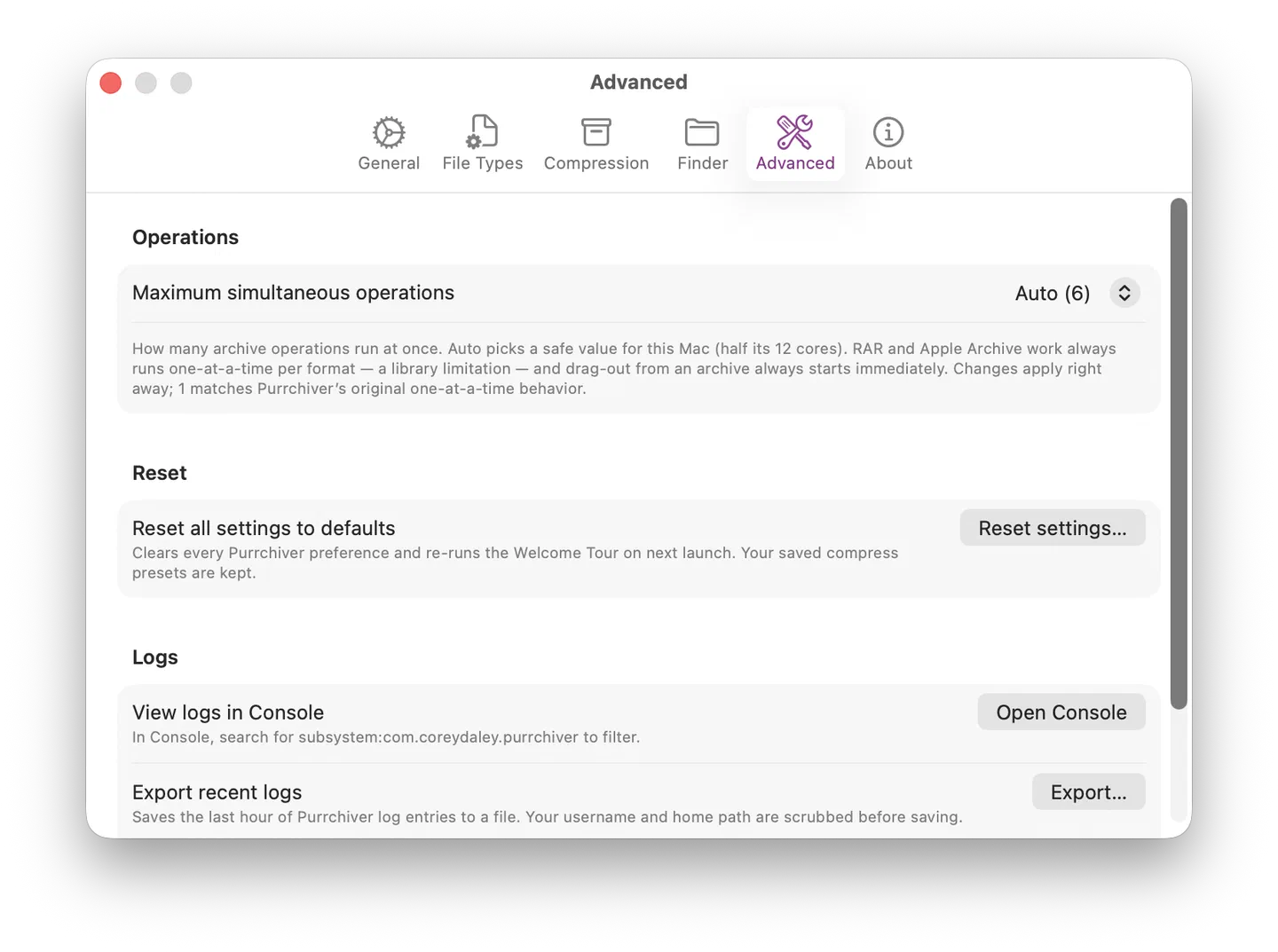
Power-user and diagnostic operations that don’t fit cleanly into the user-facing panes.
Operations
- Maximum simultaneous operations — an Auto-plus-explicit-values picker that caps how many extract/compress operations Purrchiver runs at once. Auto (the default) lets Purrchiver pick a sensible number for your Mac; choose an explicit value to hold the line lower (gentler on a busy machine) or push it higher.
Diagnostics
- Reset all settings to defaults — clears every Purrchiver preference and re-runs the Welcome Tour on next launch. Your saved compress presets are kept.
- View logs in Console — opens Console.app. Search for
subsystem:com.coreydaley.purrchiverto filter to Purrchiver’s entries. - Export recent logs — saves recent log entries from the current
session (up to about the last hour, subject to what the system still
has in memory) to a
.txtfile you choose. Your username and home-folder path are scrubbed before saving. - Send sanitized log to developer — captures the current session’s recent log entries, scrubs identifying data, and shows you a preview sheet of the exact bytes that will leave the app before opening your default mail client. You can also Copy to Clipboard from the preview if you use webmail. Nothing transmits until you click Send in Mail.
See Diagnostic logs for what’s captured and what isn’t.
About
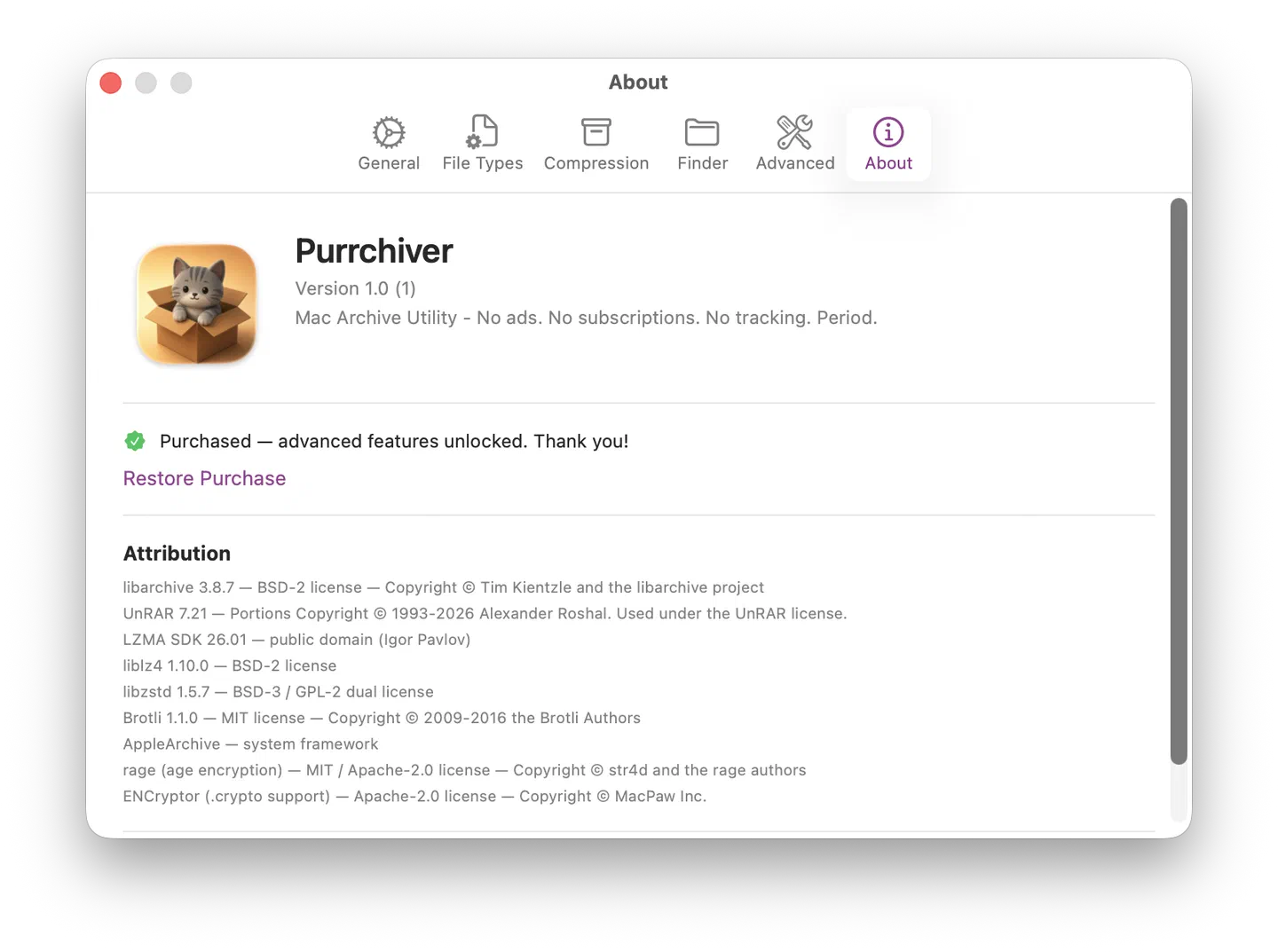
The About pane shows the Purrchiver icon, the version (e.g. Version 1.0 (1)), the tagline, the advanced-features purchase controls, and attribution.
The purchase controls reflect the freemium model — free to download with a one-time unlock for the advanced features:
- Unlock Advanced Features… — starts the one-time in-app purchase.
- Restore Purchase — re-grants the unlock on a Mac where you’ve already bought it (or after a reinstall).
Once you own the unlock, these are replaced by a “Purchased — advanced features unlocked” line.
Attribution:
- libarchive 3.8.7 — BSD-2 license — Copyright © Tim Kientzle and the libarchive project
- UnRAR 7.21 — Portions Copyright © 1993-2026 Alexander Roshal. Used under the UnRAR license.
- LZMA SDK 26.01 — public domain (Igor Pavlov)
- liblz4 1.10.0 — BSD-2 license
- libzstd 1.5.7 — BSD-3 / GPL-2 dual license
- Brotli 1.1.0 — MIT license
- AppleArchive — system framework
- rage (age encryption) — MIT / Apache-2.0 license
- ENCryptor (.crypto support) — Apache-2.0 license — © MacPaw Inc.
Plus links to the help site and the privacy policy.
What’s deliberately NOT in Settings
- No “rate this app” controls. Purrchiver doesn’t prompt for ratings.
- No analytics / telemetry settings. Purrchiver doesn’t collect.
- No automatic crash reporting. Crash and error reports are opt-in, user-reviewed, and sent through your own mail client — never silently or to a third-party endpoint.
- No “Try our other apps” panel.
- No theme picker (other than the OS-level Light / Dark — Purrchiver follows your system).
- No accent color override (Purrchiver uses your system accent — the cardboard brown lives in the icon, not the UI).
If you’d find any of these useful, email corey@purrchiver.app — happy to hear the case.
Related
- Creating a new archive — what each Create-sheet option does
- Compression presets — manage the saved option bundles the Compression pane lists
- Finder integration — Services menu details
- Diagnostic logs — what the unified log captures
- Privacy & security — verifiable claims