
Purrchiver ships a Quick Look extension, so you can peek inside an archive straight from Finder — no need to open the app or extract anything first.
Select an archive in Finder and press Space (or pick Quick Look from the right-click menu). The standard macOS Quick Look panel opens and shows the archive’s contents listing — a flat list of every entry inside, with a header showing the archive name, the item count, and the total size — read directly from the archive’s index.
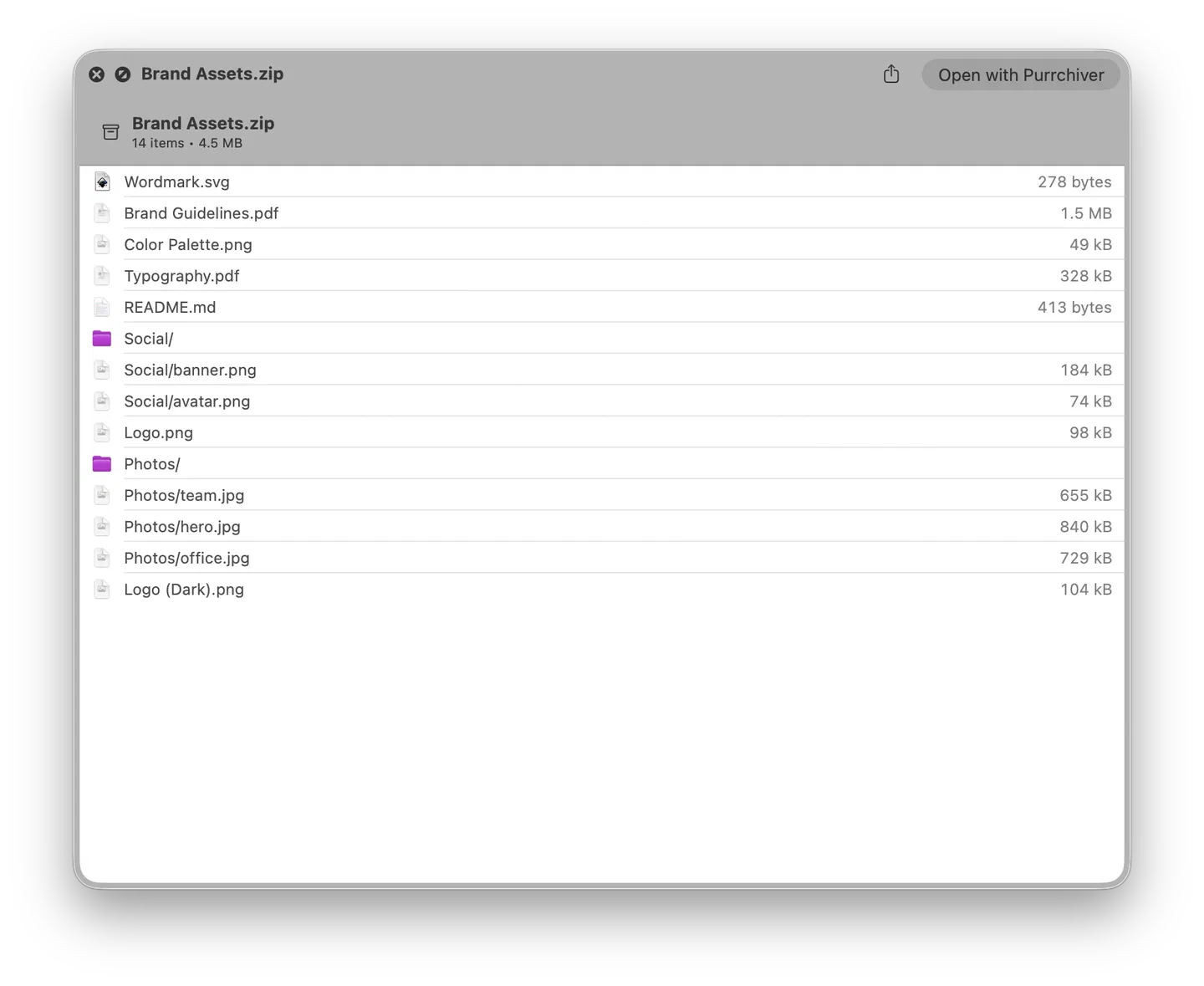
What it shows
- The file listing — a flat list of every entry’s path, each row
carrying a file or folder icon, plus a right-aligned per-file size on
every non-folder row. The header shows the archive name and an
“N items •
” summary. Open the archive in Purrchiver for the full Size/Kind/Modified columns and folder navigation. Nothing is written to disk; Purrchiver reads only the archive’s index to build the preview. - Large archives are listed up to a cap (the first 1,000 entries, with a “More items not shown” note beyond that) so the preview stays instant even on huge archives. Open the archive in Purrchiver to browse the complete listing.
Previewing a single file (in the app)
The Finder Quick Look preview shows the listing — not the contents of an individual file inside the archive. To preview a file itself, open the archive in Purrchiver, select an entry, and press Space: Purrchiver extracts just that one entry to a temporary file and renders it through macOS Quick Look — a document, image, or PDF — without extracting the rest of the archive. See Preview a file without extracting.
The Finder preview lists the archive’s contents without extracting anything. The in-app single-file preview extracts only the one entry you selected (to a temp file) so Quick Look can render it — the rest of the archive is left untouched.
Encrypted archives
If the archive is encrypted, Quick Look can’t list its contents without the password — and Quick Look has nowhere to type one. Purrchiver’s preview says so plainly and points you to open the archive in Purrchiver, where you’ll get the password prompt. See Encrypted archives.
Corrupt or unreadable archives
If the archive is truncated or damaged, the Quick Look preview shows a short message saying it couldn’t be read, rather than a blank panel. Open it in Purrchiver for the specific error and what to do about it — see Common errors.
Related
- Opening an archive — open the archive in Purrchiver to browse the full listing and extract
- Extracting files — pull files out once you’ve seen what’s inside
- Format support — which formats Purrchiver reads