
A preset is a saved bundle of compress options you can pick from the dropdown at the top of the Create Archive sheet — instead of walking through Format / Compression level / Encryption / Strip macOS metadata every time you make an archive.
One of your presets can be marked the Default. The default loads automatically every time you start a new archive, so the most common case is one click.
Using the built-in starter presets is free — select one, apply it, set it as Default, or remove it without paying. Creating, editing, or duplicating your own custom preset is part of the one-time $9.99 unlock, as is creating with a preset that targets a paid create format (7z, xz, ISO, …), turns on encryption, or splits into volumes — see What’s free vs. the unlock.
Picking a preset
Presets live in the Create Archive sheet — the one you reach by clicking Choose options and create… in a staging window. The Preset row at the top is a dropdown of None plus every preset you’ve saved:
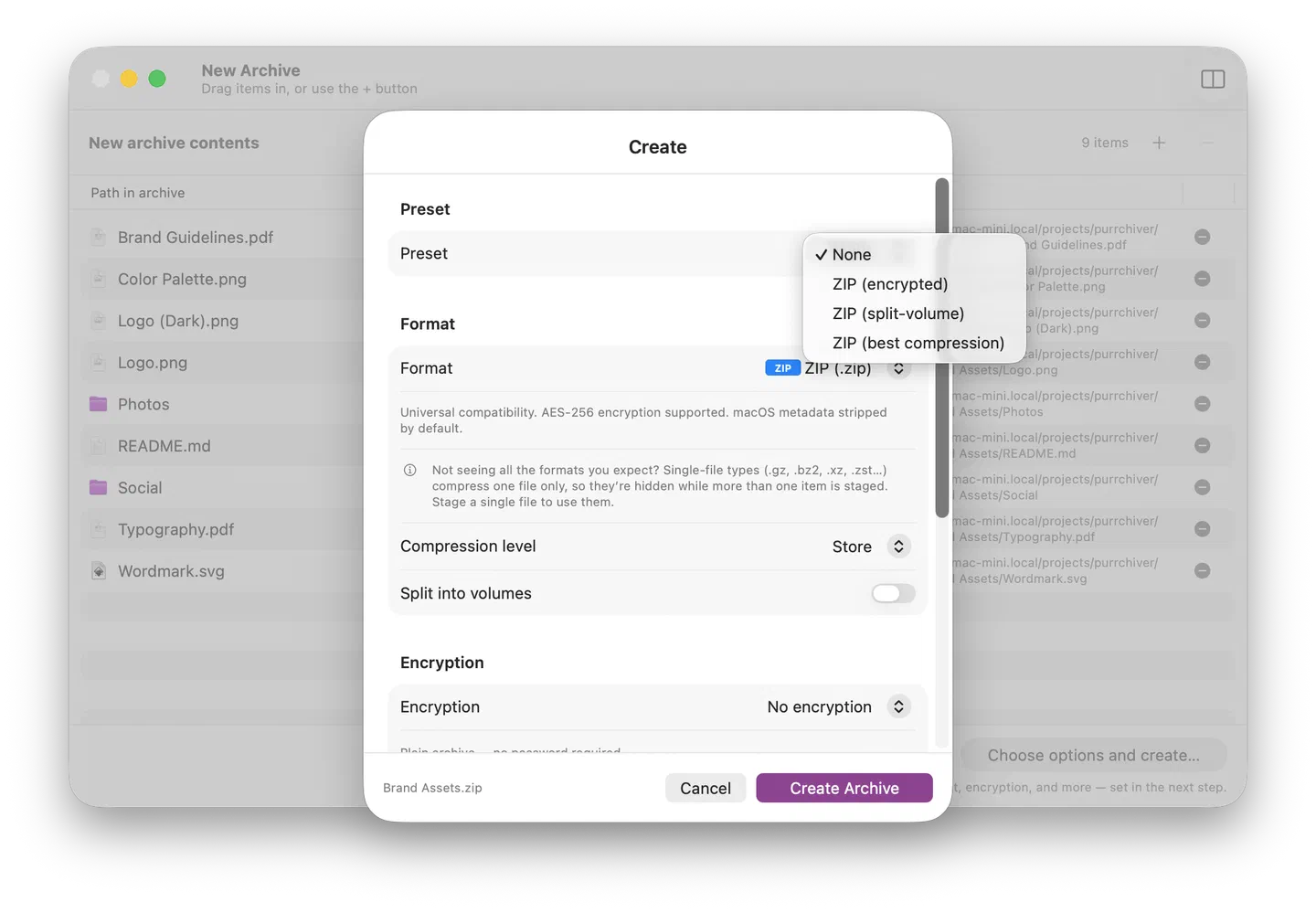
Pick a preset to load its whole bundle of options at once — format, compression level, encryption, split, and metadata handling. Pick None to start from the plain defaults and set options by hand. The format itself is chosen separately, in the sheet’s Format picker — see Creating a new archive.
Managing presets
Open Purrchiver → Settings → Compression and scroll to the Presets section:
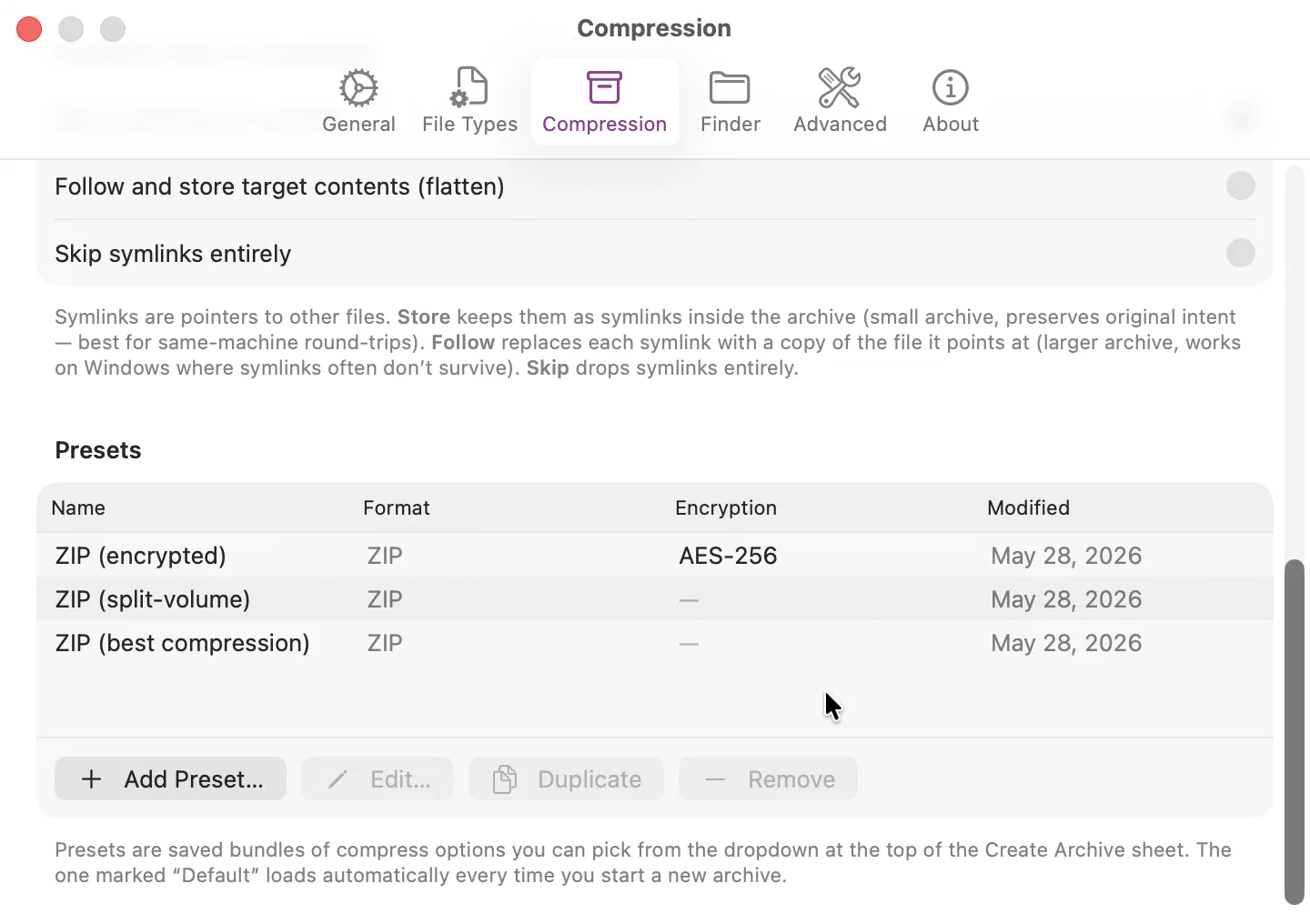
The table shows each preset’s name (with a Default pill if it’s the one auto-loading), its format, how it encrypts (—, age, or AES-256), and when you last touched it. Below the table:
- Add Preset… — open a blank editor for a fresh preset.
- Edit… — modify the selected preset in place. Same sheet as Add, pre-filled.
- Duplicate — clone the selected preset, append " Copy" to the name, open the editor on the copy.
- Remove — delete the selected preset. Doesn’t affect any archive you’ve already created with it.
Right-clicking a row offers Edit…, Duplicate, and Delete preset….
The Add / Edit sheet
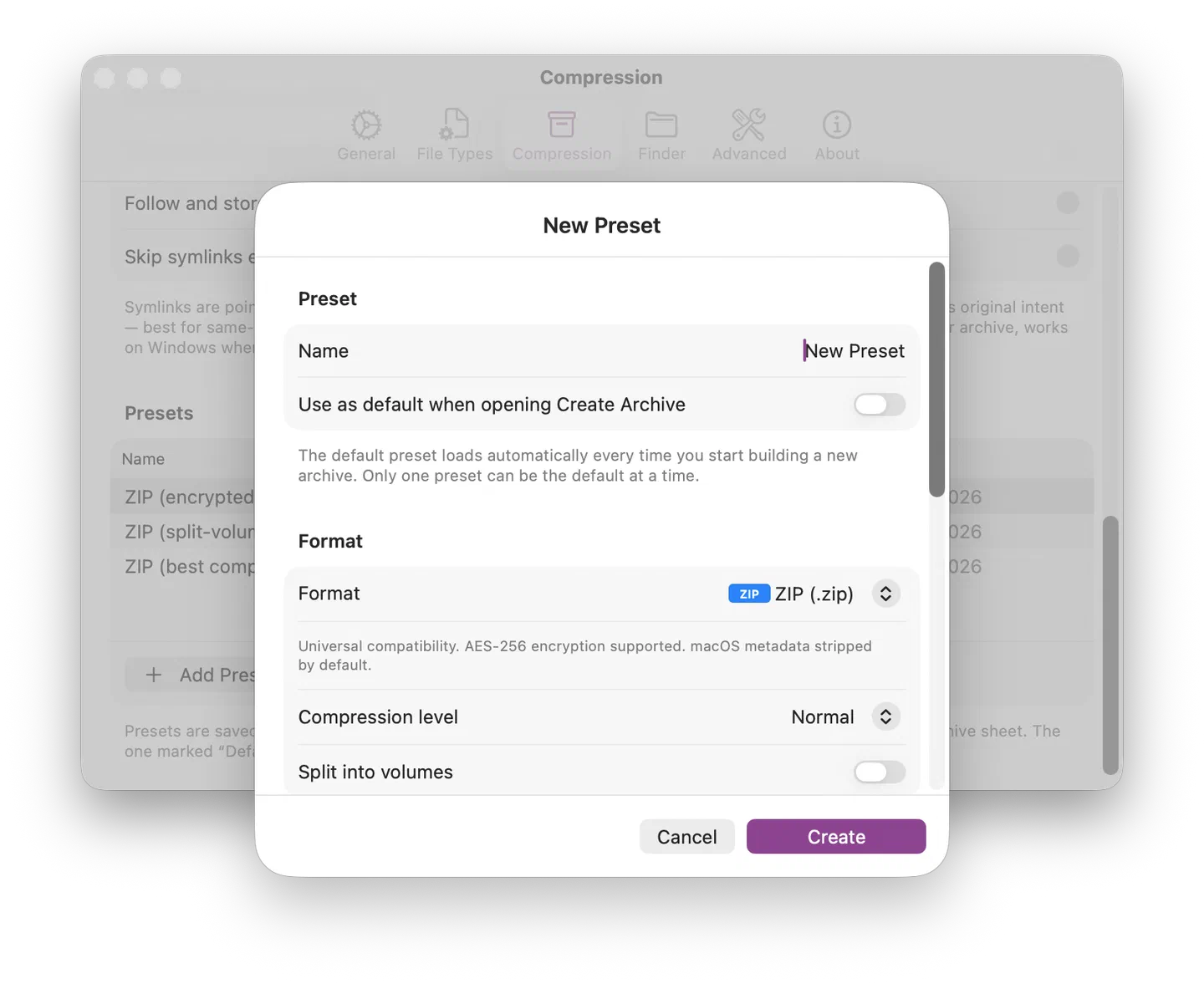
Sections, top to bottom:
| Section | What’s in it |
|---|---|
| Preset | Name field plus the Use as default when opening Create Archive toggle. Only one preset can be the default at a time — toggling it on demotes whichever preset was previously default. |
| Format | Format dropdown (every supported format including all tar-family variants, AAR, ISO 9660, single-stream formats), plus Compression level (Store / Fast / Normal / Best — applied to formats that have a level dial). |
| Encryption | Encryption-method picker — None / AES-256 / age. Disabled for formats that don’t support encryption (tar-family without a separate encryption layer, ISO 9660, CPIO, the single-stream formats). When set to AES-256 or age, the resulting preset triggers the password prompt at archive-creation time — the password itself is never stored in the preset. |
| Cross-platform | Strip macOS metadata when creating ZIPs — only visible when Format is ZIP. The default is on so recipients on Windows and Linux don’t see the ._* resource-fork sidecars. |
| Verify after creation | Smart / Always / Encrypted only / Never — mirrors the global Compression settings default but per-preset for the cases where you want stricter or looser verification on this specific preset. |
Cancel discards your edits. Create (or Save when editing) commits to the SwiftData store immediately and the preset is available in the Create Archive sheet’s Preset dropdown and the Compression settings table — without restarting the app.
The Default preset
The preset marked Default is pre-selected in the Create Archive sheet’s Preset dropdown. The staging window’s footer always shows a single CTA — Choose options and create… — which always opens the Create Archive sheet; it never skips the sheet or jumps straight to a save panel. When the sheet opens, the Preset dropdown is seeded to your default preset (instead of None), so its whole bundle of options is already loaded and the common case is one click to confirm. Pick a different preset, or None, right there in the sheet for a one-off.
A fresh install ships with no preset set as Default — the Create Archive sheet opens with the Preset dropdown on None and Purrchiver’s global Compression defaults (ZIP, Normal compression, no encryption). Add a preset and toggle the Use as default when opening Create Archive switch on to make it the new default; only one preset can be the default at a time.
Tips
- Name presets for the situation, not the format. “Email-safe ZIP” or “Linux server tar.gz” or “Encrypted backup” beat “ZIP 1” / “ZIP 2” / “7z” because the situation is what you’ll remember in six months.
- One preset per recipient class is the sweet spot. Too few and you’re back to manual configuration; too many and the picker becomes a scroll. Three to five is plenty for most users.
- Duplicate before you experiment. If you have a working preset and want to try different compression-level / encryption settings, Duplicate first so the original stays intact.
- Encryption-on presets don’t store the password. The preset says “this encrypts” — the actual password is prompted at create time and lives in memory for the session only. Same security model as every other encrypted archive in Purrchiver.
What’s deliberately NOT here
- No cloud sync of presets. Presets live on this Mac only. No iCloud, no cross-device sharing, no account — Purrchiver has no backend.
- No preset import/export. Today there’s no “share my preset with a colleague” affordance. If this turns out to be useful, email corey@purrchiver.app — happy to hear the case.
- No password storage in presets. A preset can say “use encryption” but the password is always typed at archive-creation time — Purrchiver never persists archive passwords (no SwiftData field, no Keychain entry). See Encrypted archives help for the full password-storage model.
Related
- Creating a new archive — what each option in the Create Archive sheet does, with or without a preset
- Encrypted archives — how the encryption toggle on a preset interacts with the session-only password model
- Settings — Compression pane that hosts the Presets table