
Multi-part archives are single archives split across multiple files — often used to work around upload limits, email attachment ceilings, or older filesystems. Purrchiver opens them as one logical archive, no matter how many parts there are.
Point Purrchiver at any single part and it finds the rest, sorts them correctly, and opens the whole set.
New to split archives? Multi-part archives on macOS is the plain-English version of this page.
Common multi-part schemes
| Scheme | Example filenames | Typical source |
|---|---|---|
| Modern RAR multi-part | archive.part01.rar, archive.part02.rar, … | WinRAR 3+ |
| Legacy RAR multi-part | archive.rar, archive.r00, archive.r01, … | Older WinRAR / DOS RAR |
| 7z multi-part | archive.7z.001, archive.7z.002, … | 7-Zip’s split-volume output |
| ZIP multi-part | archive.zip, archive.z01, archive.z02, … | Older ZIP tools (rare on Mac) |
| Byte-split uncompressed tar | archive.tar.001, archive.tar.002, … | split-style byte chunks of a plain .tar |
How to open them
Point Purrchiver at any one of the parts. Drag any single file to the dock, or double-click any single part in Finder.
Purrchiver:
- Recognizes the part as belonging to a multi-part set.
- Scans the parent folder for the other parts.
- Sorts them in the correct order.
- Opens them all as a single logical archive.
You don’t need to:
- Select all the parts manually (though you can — it works either way)
- Concatenate the files yourself
- Use any special “join” command
- Worry about part numbering
What if a part is missing?
Purrchiver checks the set before it tries to read, so instead of a cryptic failure deep in extraction you get a message that says exactly what’s wrong:
- A part in the middle is missing — Purrchiver names the gap. Open
SplitDemo.7z.001with.003absent and you get: "…is part of a split archive, but some parts are missing (003). Every part must be in the same folder to open it."
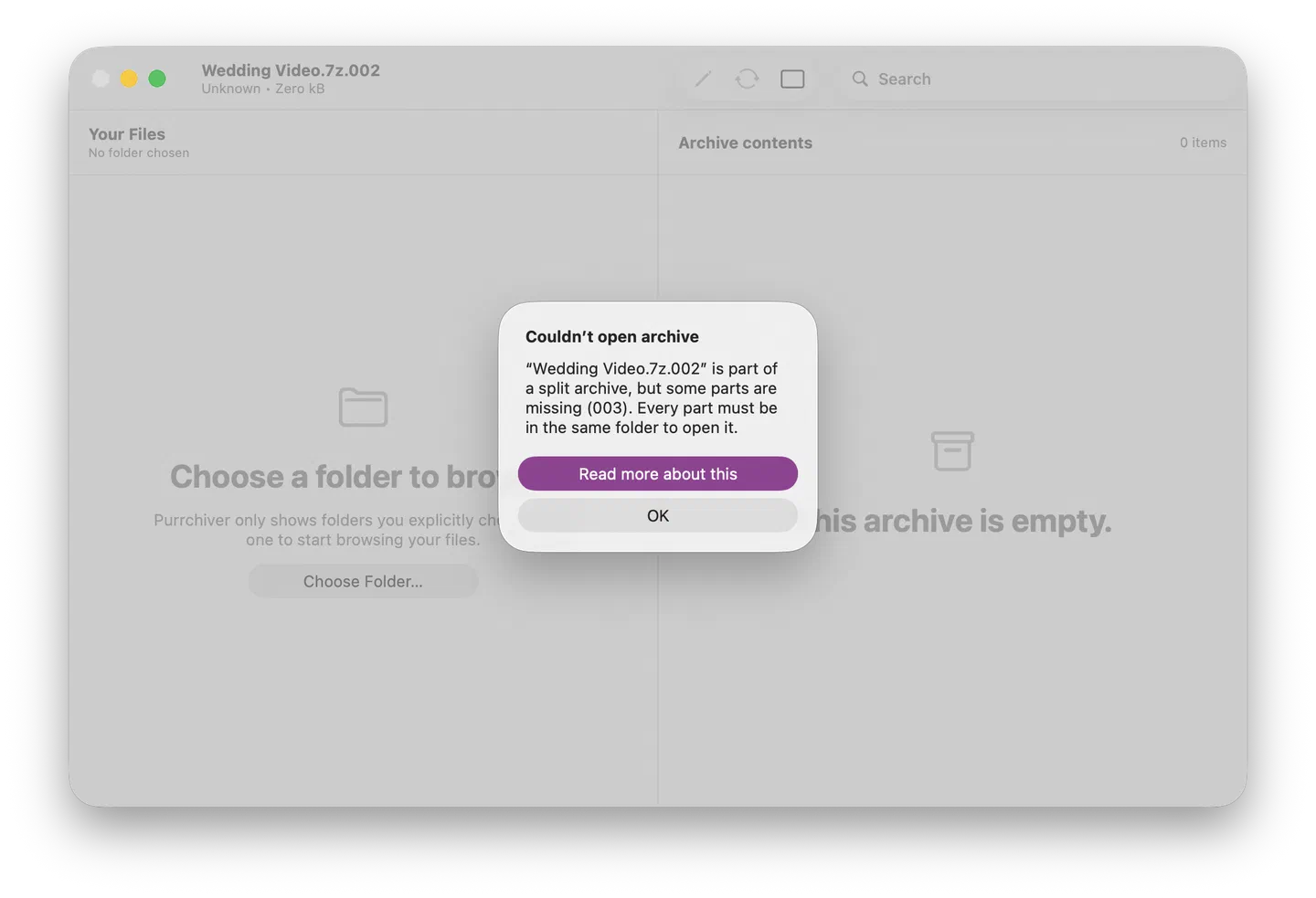
- The final part is missing — Purrchiver tells you the set is incomplete. For 7z (which records the total size up front) it even estimates how much data is still missing; for ZIP and tar it confirms the end-of-archive marker isn’t present.
- A part was renamed so the numbering pattern no longer matches — the set won’t assemble; restore the original filenames.
What to do: put every part in the same folder with its original filename, then re-open any one of them.
What if parts are in different folders?
Purrchiver only scans the parent folder of the file you opened. If your parts are scattered across different folders, move them into one folder first and then open any one of them.
Creating a multi-part archive
Reading a split set someone sends you is always free. Creating a split-volume archive is part of the one-time $9.99 unlock — see What’s free vs. the unlock.
Purrchiver creates split-volume archives too. In the Create
Archive sheet, turn on Split into volumes and pick a per-volume
size. The picker offers presets tied to real delivery channels —
1.2 / 1.44 MB (floppy), 100 MB (Zip disk), 700 MB (CD), 1 GB (Jaz),
4 GB (FAT32 USB single-file cap), 4.7 GB (DVD), 8.5 GB (DVD-DL),
25 GB (Blu-ray), 50 GB (Blu-ray-DL) — plus Custom… for an
arbitrary size. Purrchiver writes numbered volumes (.001, .002, …)
next to your chosen output name.
Which formats can be split on write
| Format | Volumes written | How it splits |
|---|---|---|
| 7z | archive.7z.001, .002, … | Native 7-Zip multi-volume |
| ZIP | archive.zip.001, .002, … | Byte-split |
.tar.gz / .tar.bz2 / .tar.xz / .tar.zst / .tar.lz / .tar.lz4 | archive.tar.gz.001, .002, … | Byte-split |
RAR is never written (Purrchiver doesn’t create RAR at all), so there’s no split-RAR write.
Will the recipient be able to open them?
Yes — with any modern archive tool. 7-Zip, Keka, The Unarchiver,
BetterZip, and WinRAR all recognize the numbered-.001 convention
and recombine the parts automatically on extract; the recipient just
opens part .001 (or any part) the same way they’d open a received
RAR set. Purrchiver itself reads its own split output back, too.
The one tool that can’t is macOS’s built-in Archive Utility — it has no split-volume handler (it also can’t open 7z or RAR). If you’re sending a split archive to someone who only uses Finder’s double-click, point them at any real archive app first.
Note on ZIP: Purrchiver writes split ZIPs as a byte-split (
archive.zip.001,.002, …), which is what 7-Zip-family tools expect. This is a different convention from the older PKWARE “spanned ZIP” scheme (archive.z01,.z02,archive.zip) that Purrchiver reads — so a ZIP you split in Purrchiver is named.zip.001, not.z01.
Encrypted multi-part archives
Reading: encrypted multi-part archives extract the same way as single-file encrypted archives. Open any one of the parts; Purrchiver prompts for the password once and unlocks the whole set.
Writing: you can create an encrypted split 7z — turn on both
AES-256 encryption and Split into volumes in the Create Archive sheet,
and the whole encrypted set is written as numbered volumes. Open part
.001 with the password to extract.
Editing multi-part archives
Edit-mode’s fast save writes a single-file output — it doesn’t re-split on save. If you make changes and save, Purrchiver writes one combined archive (you’ll be prompted to pick a destination filename), and the original volume set on disk is left as-is. To produce a split-volume result from an edited archive, use the Create Archive sheet (with Split into volumes turned on) rather than the fast save.
Multi-part support at a glance
| Scheme | Read | Write |
|---|---|---|
Modern multi-part RAR (.partN.rar) | ✓ (incl. encrypted) | — (RAR is never written) |
Legacy multi-part RAR (.r00/.r01/…) | ✓ (incl. encrypted) | — |
7z multi-part (.7z.001/.002/…) | ✓ | ✓ (incl. encrypted) |
Spanned ZIP (.z01/.z02/.zip) | ✓ | — (Purrchiver writes byte-split ZIP instead) |
Byte-split ZIP (.zip.001/.002/…) | ✓ | ✓ |
Byte-split tar (.tar.gz.001, .tar.zst.001, …) | ✓ | ✓ |
Byte-split uncompressed tar (.tar.001/.002/…) | ✓ | — (Purrchiver doesn’t split plain .tar on write) |
Tips
- Keep all parts in the same folder. Purrchiver only scans the folder containing the part you opened.
- Don’t rename individual parts. Multi-part schemes rely on consistent
filename patterns. Renaming
archive.part03.rartopart 3.rarbreaks Purrchiver’s ability to find it. - When in doubt, pick part 01. Some old multi-part tools expect you to start with part 1 specifically. Purrchiver will find the rest from any part, but if you have a choice, part 1 is the canonical starting point.
Related
- Opening an archive
- Creating a new archive
- Extracting files
- Common errors — multi-part open failures