
Purrchiver creates encrypted archives with AES-256 — the same algorithm 7-Zip and WinRAR use. Encrypted archives are verified after creation by default: Purrchiver re-opens the archive, reads each entry, and confirms the password unlocks it. (You can change this in Settings → Compression → Verify archives after creation; the Never setting disables verification entirely.)
Opening and extracting an encrypted archive someone sends you is always free. Creating encrypted archives is part of the one-time $9.99 unlock — see What’s free vs. the unlock.
Creating an encrypted archive
In the Create Archive sheet, tick Encrypt with AES-256. Two fields appear:
- Password — the password you’ll need to open the archive later.
- Confirm password — type it again. The Create button stays disabled until both fields match.
Below the password field, a strength meter tells you how strong your password is. It’s local-only — no network requests, no AI, no SDK — a small heuristic that checks length, character classes, common-password patterns, and repetition.
Password characters — ASCII only, for now
Purrchiver currently accepts ASCII passwords only (the letters, digits, and punctuation on a standard US keyboard). If you type a non-ASCII character — an accented letter, an emoji, a non-Latin script — the Create button stays disabled and a note explains why.
The same applies when opening an archive someone else encrypted with a non-ASCII password: Purrchiver tells you it can’t process that password yet rather than claiming the password is wrong. (It isn’t wrong — we just don’t handle non-ASCII passwords yet.) Full Unicode-password support, with correct 7-Zip / WinRAR interoperability, is planned for a future update.
Why the confirm field is non-optional
A single password field with no confirmation is how people accidentally encrypt archives with a typo’d password — and then can’t open them later. Purrchiver doesn’t ship that failure mode.
What “verified after creation” means
When you click Create (with the default verify-after-creation setting):
- Purrchiver writes the encrypted archive.
- Purrchiver immediately re-opens it.
- Purrchiver decrypts every entry end-to-end with your password, exercising the cipher across the whole archive — not just a probe of the first few entries.
- Verification runs against a temporary output, before it’s swapped into place. If decryption fails (which it shouldn’t, but if), Purrchiver shows an error and discards the temporary file — the destination is never written, so there’s no partial archive left behind. Your source files are unaffected.
The verify-after-creation behavior is configurable in Settings → Compression. The default is Smart (verify every encrypted archive, and every unencrypted archive smaller than 500 MB). You can also force Always, restrict to Encrypted only, or turn it off with Never — in which case verification is skipped and the archive is whatever bytes landed on disk.
In practice verification always passes; the step is how you know it does.
Opening an encrypted archive
When you open an encrypted archive, Purrchiver shows a password prompt before listing the contents:
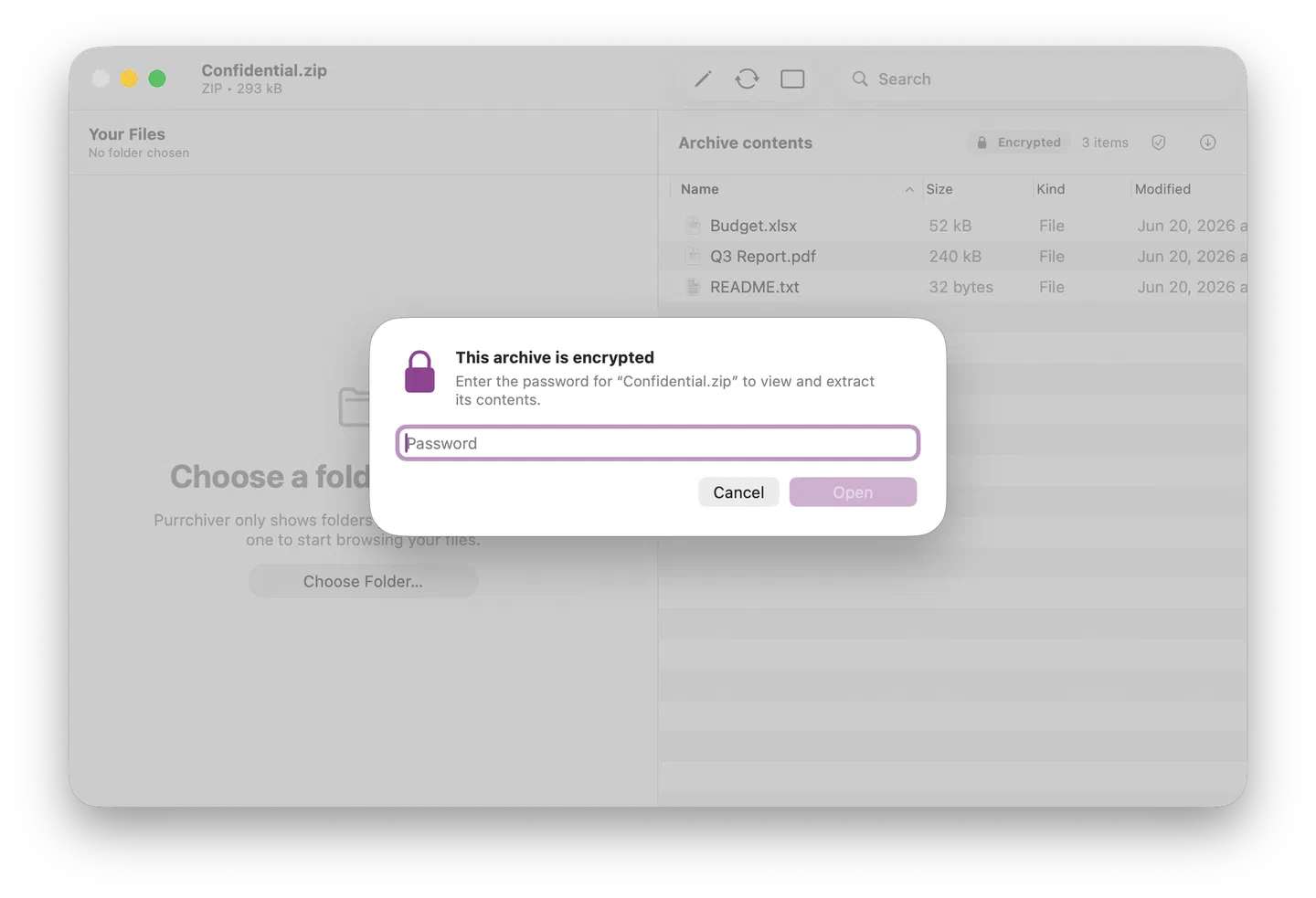
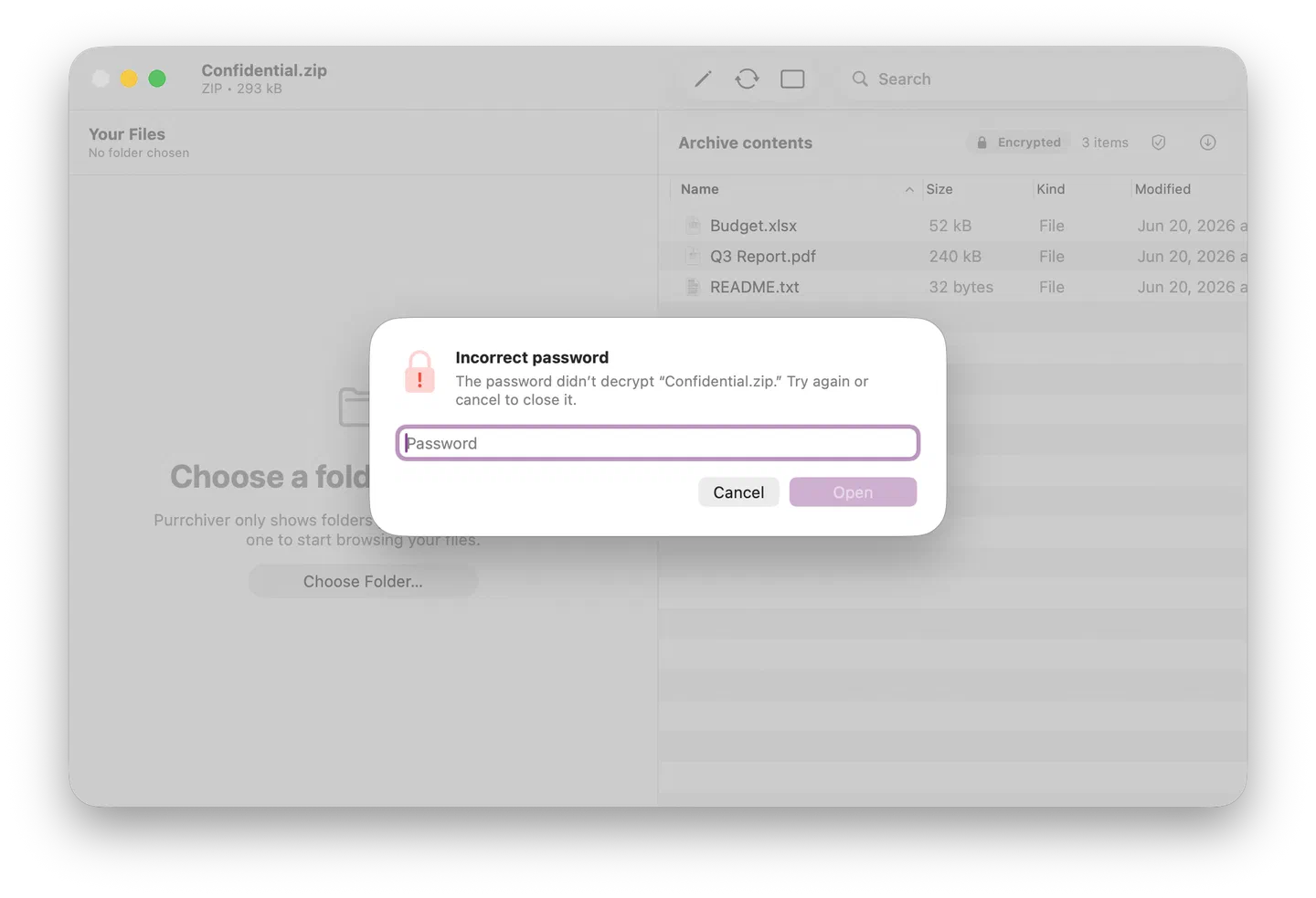
Type the password and click Open. If the password is wrong, Purrchiver tells you specifically — wrong-password gets its own clearly-named error, not the unhelpful “extraction failed” that some tools show.
How long the password sticks
Passwords stay in memory for the open session only — Purrchiver doesn’t persist them between launches. Close the archive and the password is gone.
There is no Purrchiver password file, no preferences entry, no SQLite database, no Keychain entry.
Changing the password on an existing archive
Presets don’t store passwords (that would be a security hole). So when the active preset is encrypted, the fast-path Save (⌘S) routes you to the full Create Archive sheet so you can enter the password there. To change the password, add encryption to a previously-unencrypted archive, or remove encryption, you’ll be in the sheet anyway:
- Open the archive, enter Edit mode, enter the current password if prompted.
- Click Advanced options… (not the fast-path ⌘S Save) — it opens the Create Archive sheet with the encryption toggle, password fields, and format controls. In Edit mode the visible primary button is Save; Advanced options… is the route to the password fields.
- Pick an encrypted variant (ZIP + AES-256 or 7z + AES-256), or an unencrypted variant to drop encryption.
- Enter the new password (with confirmation) if encrypting.
- Save to a new filename, verify it opens with the new password, then delete the old archive.
Purrchiver writes a new archive with the new settings. The save writes directly to the destination you pick in the Save panel — see Editing an existing archive for the data-safety note about saving over an original.
Password best practices
- Use a passphrase, not a password. Four random words (“correct
horse battery staple”) beats a 10-character
Pa$$w0rd!by orders of magnitude. The strength meter rewards length more than complexity. - Don’t reuse passwords. Especially not your email or banking password. If the archive falls into the wrong hands, you don’t want their next attempt to be your bank.
- Use a password manager. Purrchiver doesn’t store passwords — once you close the archive, the password is gone. Generate and store the password in 1Password / Bitwarden / Apple Passwords / Keychain Access, and paste it when prompted.
v1.0 password limitations
- ASCII characters only. Letters A–Z (upper and lower case), digits 0–9, and standard punctuation. The Create Archive sheet rejects passwords containing accented characters, ideographs (CJK), emoji, or any other non-ASCII glyph. Older archive engines disagree on which Unicode encoding to use for non-ASCII passwords, so an archive made with one tool often won’t open with another — keeping passwords ASCII-only sidesteps the interop problem.
- No NUL bytes or control characters. The compose field rejects these because most archive formats can’t represent them consistently.
- Length matters more than complexity. A 16-character random string is dramatically stronger than an 8-character one with punctuation tricks, even within the ASCII-only constraint.
What encryption Purrchiver supports
Reading (the Read encrypted column) is free for everyone. Writing (the Write encrypted column) is part of the one-time $9.99 unlock.
| Format | Read encrypted | Write encrypted |
|---|---|---|
| ZIP + AES-256 | ✓ | ✓ (unlock) |
| ZIP + ZipCrypto (legacy) | ✓ (read only) | ✗ — see below |
| 7z + AES-256 | ✓ (content + header-encrypted) | ✓ (unlock) |
| AEA (Apple Encrypted Archive) | ✓ | ✓ (unlock; always encrypted; password ≥ 32 ASCII chars; Apple platforms only) |
| age wrap (any container) | ✓ (decrypt to sibling) | ✓ (unlock; wrap any archive or file, output <name>.age) |
| Encrypted DMG | ✓ (password-prompted decrypt → browse/extract in-app, non-mounting) | ✓ (unlock; AES-256 disk image) |
| RAR encrypted | ✓ (content + header-encrypted, via UnRAR) | ✗ — Purrchiver can’t write RAR at all |
MacPaw Encrypto (.crypto) | ✓ (password-prompted decrypt → browse) | ✗ — read-only |
age is the universal escape hatch: when a container has no built-in
encryption (a .tar.zst, an .iso, a single-stream .gz, an .aar),
Purrchiver can wrap the finished file in a passphrase-based age
envelope that no other Mac archiver offers. The recipient opens it with
Purrchiver or any age-compatible tool (age / rage). See
age encryption for the full story.
Opening a .crypto file (MacPaw Encrypto). Encrypto is MacPaw’s free
encryption app; it produces AES-256-encrypted .crypto files. Purrchiver
reads them: drop one in, Purrchiver shows the password prompt (along with
the password hint Encrypto stored, if there is one), and on the right
password it decrypts, verifies integrity, and lets you browse and extract the
contents like any archive. It’s read-only — Purrchiver opens .crypto
files but never creates them. Handy if you’re moving off MacPaw’s tools and
still have old .crypto files to get into.
Why no ZipCrypto write?
ZipCrypto is the legacy ZIP encryption scheme. It has been trivially
breakable since the late 1990s — academic papers in 1994 demonstrated
practical key-recovery attacks. Modern ZIP-cracking tools (zip2john,
john) crack ZipCrypto-encrypted archives on a laptop in seconds.
Purrchiver reads ZipCrypto-encrypted archives (you’ll encounter them
in old .zip files from the 90s/2000s), but it doesn’t write them —
because shipping known-broken crypto as a creation option would be
irresponsible. If you need to encrypt a ZIP, Purrchiver uses AES-256.
What encryption protects (per format)
| Format | What encryption covers |
|---|---|
| ZIP + AES-256 | File contents only. Filenames inside the archive remain visible to anyone listing the archive. |
| 7z + AES-256 | Everything — contents and filenames. 7z is header-encrypted, so the archive can’t even be listed without the password. |
| AEA (Apple Encrypted Archive) | Everything — contents, filenames, and metadata. The whole archive is encrypted, so it can’t even be listed without the password. |
| RAR encrypted (read only) | Both content-encrypted and header-encrypted variants supported for extraction. |
For ZIP + AES-256, Purrchiver encrypts file contents — filenames in the archive listing remain visible. 7z and AEA go further: both are fully header-encrypted, so the archive can’t even be listed without the password. If you need the filenames hidden too, use 7z or AEA, or let us know at corey@purrchiver.app.
What Purrchiver doesn’t do with passwords
- Purrchiver does not send your password anywhere. Ever. There is no network connection.
- Purrchiver does not keep a password file, preferences entry, or database. Nothing persists between launches.
- Purrchiver does not have a “forgot password” feature. There is no way to recover a password you’ve forgotten — encryption is one-way by design. If you forget, the data is gone.
Related
- age encryption — the universal wrap for any container or file
- Compress or encrypt a single file — the one-step Encrypt verb
- Creating a new archive
- Editing an existing archive — Edit mode + the Create Archive sheet
- Privacy & security — verifiable claims about what Purrchiver does and doesn’t access
- Common errors — what each password error means