
Most Mac archive utilities only let you create new archives or extract
old ones. If you want to add a file to an existing .zip, the
conventional workflow is: extract everything to a folder, drop the new
file in, re-zip the whole folder, delete the original.
Purrchiver lets you skip all of that. Open the archive, click Edit mode, add or remove entries, save. Done.
This is one of Purrchiver’s biggest features and the reason a lot of people switch.
Browsing an opened archive is free. Editing it in place — adding or removing entries and saving — is part of the one-time $9.99 unlock. Purrchiver offers the unlock the moment you make your first change. See What’s free vs. the unlock.
Browse mode vs. Edit mode
When you open an archive in Purrchiver, you land in Browse mode — read-only, safe to inspect or extract from without changing the file.
To make changes:
- Click the Edit mode button (pencil icon) in the toolbar, or press ⌘E.
- The window switches into Edit mode — title shows
Editing <archive name>, the right pane now accepts drops, and every row shows a trailing−button that removes that single row. A−icon in the pane header removes the current selection. - The toolbar’s Save button (and the Save control in the staging footer) becomes your save action.
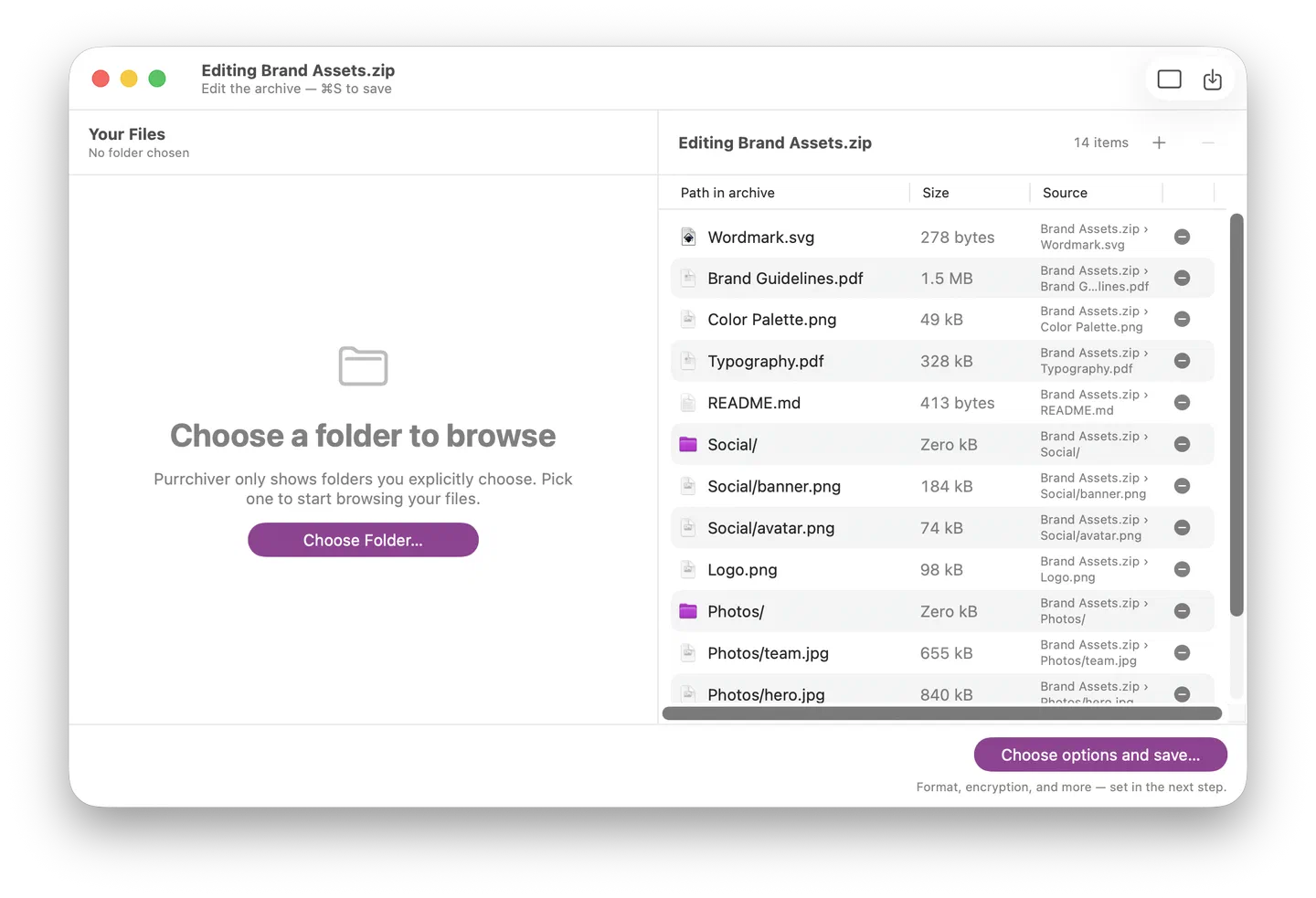
Making changes
In Edit mode:
- Add files — drag from Finder or from the left filesystem pane into the right pane.
- Remove entries — click a row’s trailing
−button to remove that single row. To remove several at once, select rows (multi-select with ⌘-click or shift-click) and click the−icon in the pane header.
Changes accumulate in memory. The archive on disk isn’t touched yet.
Saving — the Save flow
Click Save (the tray-with-a-down-arrow icon, ⌘S). Purrchiver opens a standard macOS Save dialog pre-filled with your source archive’s name and location:
- Click Save with the pre-filled name → overwrites the original. The save is atomic — Purrchiver writes the new archive to a temporary file in a same-volume system item-replacement directory first, then swaps it into place as a single filesystem operation. If the write fails partway through (power loss, force quit, full disk, verification failure), the original archive on disk is untouched and the partial file is cleaned up. Either you see the new archive in Finder, or you see your original — never an intermediate state.
- Change the name or pick a different folder → saves a copy. The original is untouched.
Format conversion on save
The format picker next to Save defaults to your source archive’s format, but you can pick a different one. Example workflow:
- Open a
.zip - Click Edit mode (⌘E)
- Optionally add/remove entries
- Change the format picker to 7z
- Click Save
Result: a new .7z archive containing the same (modified) entries.
This is the cleanest way to convert an archive from one format to
another — no separate “convert” command needed.
How saving works under the hood
Purrchiver streams each kept entry’s bytes directly from your source archive into the new archive — no intermediate extract-to-disk step.
An overwrite save writes a full temporary replacement archive, verifies it, then atomically swaps it into place. So the temporary disk usage during a save is roughly the size of the output archive — you don’t need room to extract the whole thing to a folder first.
After the write completes, Purrchiver verifies the new archive (re-reads every entry, confirms passwords if encrypted) per your verify-after-creation setting in Settings. Verify runs against the temporary output, before the atomic swap into place, so a verification failure aborts the swap and leaves your original archive untouched on disk.
The atomic-save flow uses FileManager.replaceItem under the hood,
which on macOS becomes a single same-volume renameat/F_REPLACEFILE
call when the temporary file is on the same volume as the destination —
which it always is, by design. Purrchiver writes that temporary file
into a same-volume system item-replacement directory (via
FileManager’s .itemReplacementDirectory), not a sibling in the
destination folder. Cross-volume swaps would fall back to a non-atomic
copy + delete, so staying on the destination’s volume keeps the swap
atomic.
Encrypted archives in Edit mode
Open the archive and enter its password. Click Edit. Purrchiver keeps the password in memory for the duration of the Edit session so it can read the source archive’s bytes when you save.
Presets never store passwords, so the password is never carried automatically — the source password is used only to read the source archive’s bytes during the save. When you save:
- The fast-path Save (⌘S) builds the destination with no password. If you want the edited archive to stay encrypted, you must re-enter the password — use Advanced options… to open the Create Archive sheet, set the format to an encrypted variant (e.g. ZIP + AES-256 or 7z + AES-256), and enter the password there.
- Change the password (or add/remove encryption) → same route: open the Create Archive sheet via Advanced options…, set the format to an encrypted variant, enter the new password, and save. The fast-path ⌘S in Edit mode does not surface password fields.
See Encrypted archives for password best practices.
Read-only formats
The Edit button is disabled for formats Purrchiver can’t write or rewrite cleanly. The Edit button shows a tooltip explaining why on hover.
| Editable (Edit enabled) | Read-only (Edit disabled) |
|---|---|
| ZIP (incl. AES-256) | RAR (any version) |
| IPA / APK (they’re ZIPs) | LHA / LZH / CAB / WARC |
| 7z (incl. AES-256) | RPM, .deb |
| AAR (Apple Archive) | XIP, PKG, MPKG, XAR |
| AEA (Apple Encrypted Archive) | DMG |
| CPIO | .Z (compress), StuffIt |
| ISO 9660 | gzip / bzip2 / xz / zstd / lz4 / lzip / LZMA / Brotli |
tar family (.tar, .tar.gz, .tar.bz2, .tar.xz, .tar.zst, .tar.lz) |
For any read-only format, the workflow is: extract everything, modify the files, then create a new archive (probably as ZIP or 7z) with Compress.
Edit limitations
These operations aren’t supported inside Edit mode:
- Rename entries — to rename, extract the entry, rename the file, and add it back as a fresh entry (or recompress the whole archive).
- Reorder entries — entries from the source archive appear in their original order; newly-added files appear at the end.
- Symbolic links in the source archive — currently skipped during the Edit save. The rewritten archive omits them.
- Tar-family editing (
.tar,.tar.gz,.tar.bz2,.tar.xz,.tar.zst,.tar.lz) — Edit button is disabled. To modify a tar, extract → modify → recompress.
If any of these blocks a workflow you care about, email corey@purrchiver.app — user signal informs what to prioritize.
Closing with unsaved changes
If you’ve made changes in Edit mode and try to close the window without saving, Purrchiver shows the standard macOS sheet:
Save your changes to archive name?
Your changes will be lost if you don’t save them. The original archive on disk hasn’t been modified yet.
[Save] · [Cancel] · [Don’t Save]
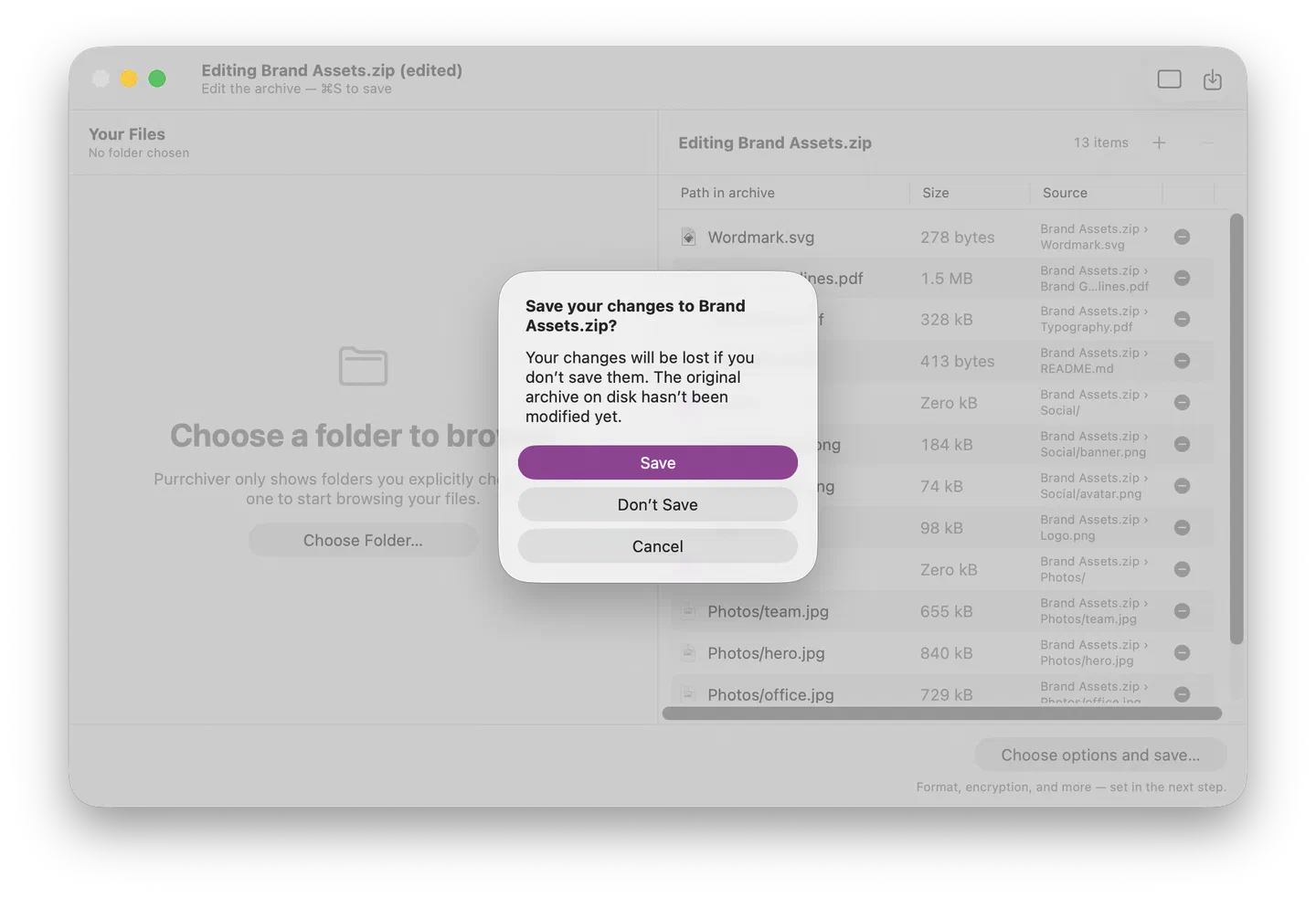
Save (the default — Return) opens the Create Archive sheet so you can commit your changes; once you save there, the window closes. Cancel returns to the window so you can keep editing or hit ⌘S yourself. Don’t Save discards your edits and closes — the file on disk is left exactly as you opened it.
Tips
- Format conversion is free. If you’ve been meaning to migrate a
.zipto.7zfor better compression, Edit + change-format-on-save is the cleanest path. - Editing a solid 7z rewrites the whole archive. Solid 7z compresses all entries together; any change requires re-emitting the whole stream.
- Don’t edit huge archives over a network volume. The streaming rewrite reads and writes a lot of bytes. Local SSD = fast; SMB or iCloud Drive = slow + risky.
Related
- Opening an archive
- Encrypted archives — change password on save
- Creating a new archive — same Save sheet
- Format support — which formats can be edited
- Keyboard shortcuts — ⌘E and friends