
When something goes wrong, Purrchiver writes diagnostic events to macOS’s unified logging system. This page explains what gets logged, how to see it, and how to send it to support if you need help with a problem.
What gets logged
Purrchiver logs into Apple’s unified log under the subsystem
com.coreydaley.purrchiver. The events it records are short,
structured lines like:
- Archive open / extract start and end (with format and item count)
- Compress start and end
- Recoverable failures (open failed, extract failed, password incorrect)
- Unsafe-path skips during extract (e.g. a zip item that tried to escape the destination)
- SwiftData persistence errors when a preference doesn’t save
Logs do not include file contents. They do include short
identifiers like archive filenames and file paths, but those are
generally written with macOS’s privacy: .private marker — they show as
<private> in normal log viewers and are only visible to processes
with elevated privileges.
When you export logs through Purrchiver, the export pipeline
scrubs your home path and macOS username before saving: your home path
is rewritten to /Users/<redacted>/… and your username is replaced with
<redacted> (same scrubber the crash reporter uses).
Opening logs in Console
Settings → Advanced → View logs in Console (the Open Console
button) launches macOS’s built-in Console.app. To filter to only
Purrchiver:
- Click the search field at the top right.
- Type
subsystem:com.coreydaley.purrchiverand press Return. - Optionally click Action → Include Debug Messages to see more detail. (Purrchiver v1.0 emits little at the debug level; this gets useful as the app matures.)
Console shows events as they happen. To see events from before you opened Console, choose Action → Include Info Messages and click Now in the toolbar to scroll back through recent history.
Exporting recent logs
Settings → Advanced → Export recent logs… captures recent log
entries from the current session (up to about the last hour, subject to
what the system still has in memory — it doesn’t include context from
previous launches), runs them through the same scrubber the crash
reporter uses (your home path is rewritten to /Users/<redacted>/… and
your username is replaced with <redacted>), and lets you save the
result anywhere via a Save dialog.
The exported file is plain text. You can open it in any editor, or attach it to an email if you’re working with support on a problem.
Sending logs to the developer
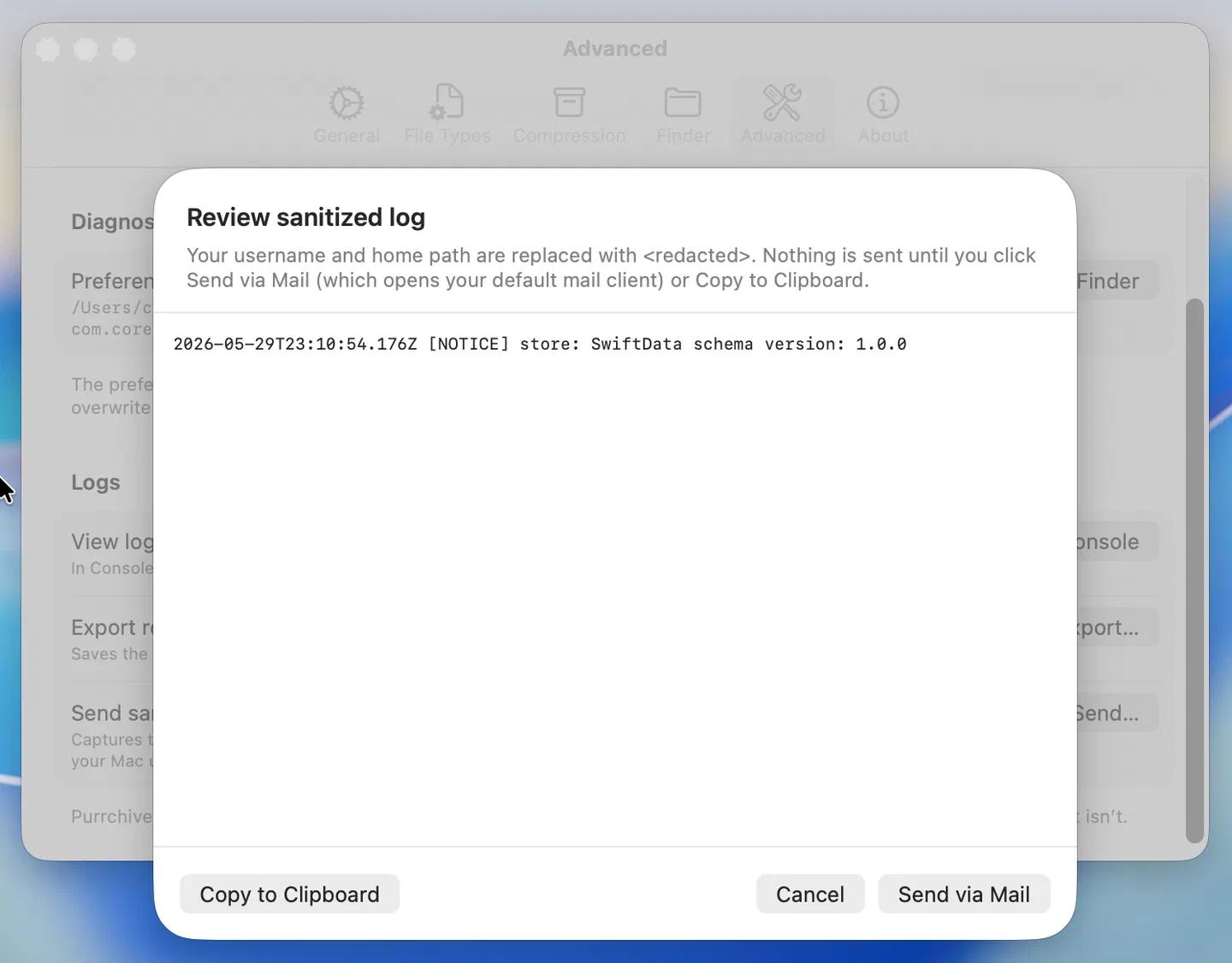
Settings → Advanced → Send sanitized log to developer goes through
the same capture-and-scrub pipeline, then opens your default mail client with a
new message addressed to corey@purrchiver.app and the sanitized log
pre-filled in the body. You see exactly what’s in the message before
sending, and you can edit or delete any part of it.
The privacy contract here is the same as the crash reporter:
- No silent uploads. Everything goes via your default mail client.
- Scrubs your username and home-folder path. The scrubber runs before the mail compose window opens, rewriting your home path to
/Users/<redacted>/…and replacing your macOS username with<redacted>. - No analytics SDK. Purrchiver doesn’t bundle any third-party logging or crash framework.
When to send logs
Send logs along with a bug report when:
- You hit an error you can’t explain (e.g. “Couldn’t open archive” on a file that opens fine in another tool)
- Extraction skipped items you expected to come through
- A specific archive format consistently misbehaves
- Purrchiver seems slower than you’d expect on a large archive
For one-off questions, an email without logs is usually enough. For reproducible bugs, the log makes diagnosis dramatically faster.
Related
- Privacy & security — what data Purrchiver stores locally
- Sending crash reports — for unexpected exits specifically
- Common errors — what each error message means
- Settings — the Advanced pane in context