
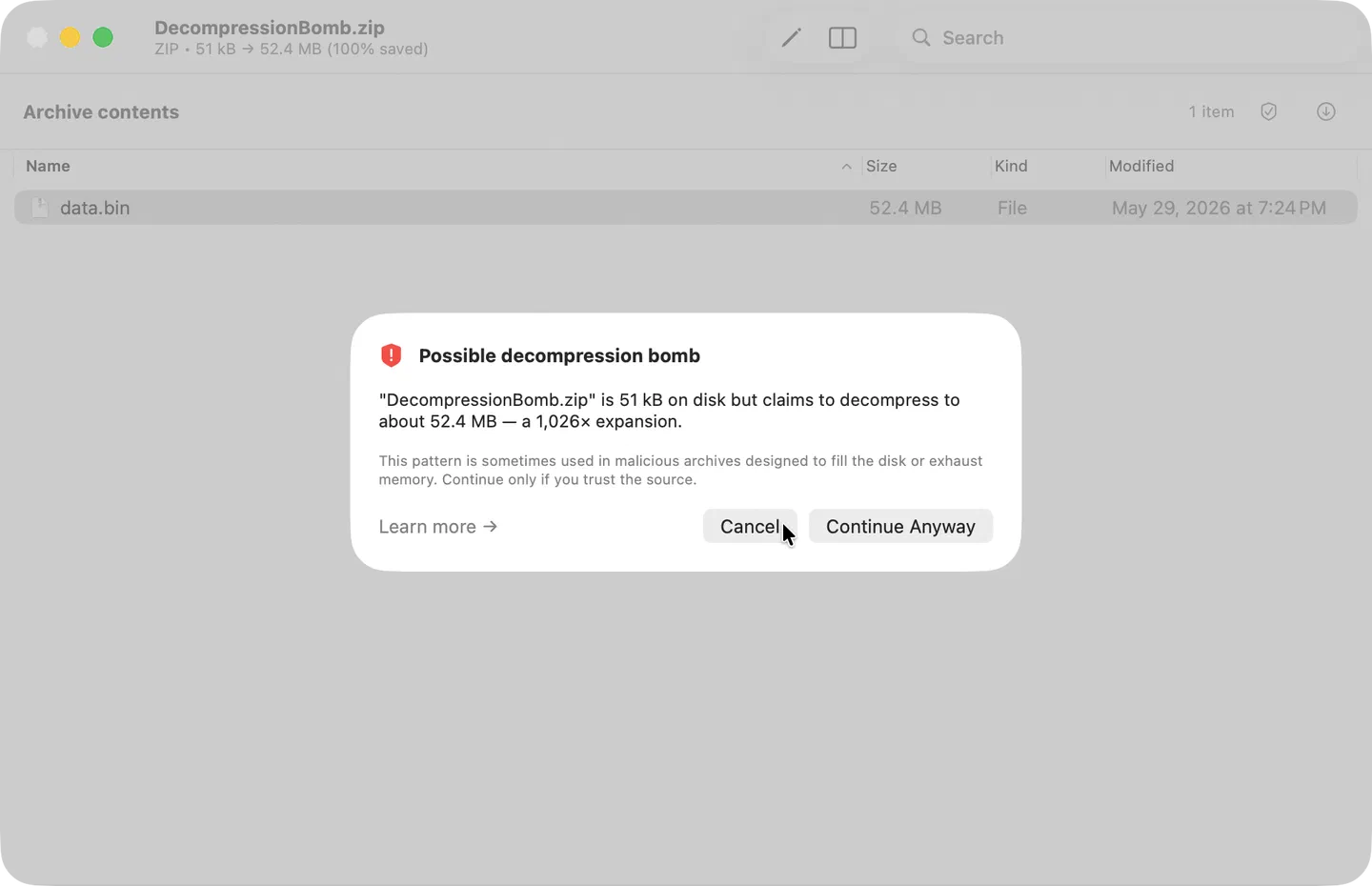
Before extracting an archive, Purrchiver reads the archive’s header listing and checks for two patterns that almost never happen with normal archives but are common in malicious ones. If either pattern fires, Purrchiver shows a confirmation prompt with a brief explanation. The default action is always Cancel.
What Purrchiver checks
“Not enough free space”
The archive’s declared total decompressed size is larger than 90% of the destination volume’s free space. Continuing would likely fill the disk to 100% and leave partially-extracted files on disk before failing.
This isn’t always malicious — some backups are legitimately huge — but it’s worth confirming before the extract starts. If you continue, the extract may still fail partway through; clean up the partial output from Finder if so.
“Possible decompression bomb”
The archive is small on disk but claims to decompress to something at least 100× larger AND at least 10 MB in absolute size. This pattern — sometimes called a zip bomb — is used in malicious archives that try to exhaust disk space or memory when extracted.
The most famous example, 42.zip,
is 42 KB on disk but expands to about 4.5 petabytes.
A high compression ratio alone isn’t suspicious — text files and disk images regularly compress 10× or more. Purrchiver only warns when the ratio AND the absolute projected output are both large enough to matter, which keeps the prompt from firing on normal well-compressed archives.
What to do
If you trust the source — the archive came from a known sender or a site you trust — click Continue Anyway. Purrchiver will proceed with the extract.
If you don’t recognize the source, the safe choice is Cancel. You can:
- Ask the sender to confirm the archive is what they meant to send.
- Open it on a system you don’t mind reinstalling (a VM, a spare machine).
- Inspect the archive’s contents in a tool that lists entries without extracting — the macOS
unzip -l filename.zipcommand-line tool lists entries without extracting, for example. Purrchiver’s preflight prompt also shows you the projected output size. - Delete the archive and move on. If it’s really a bomb, that’s the only safe outcome.
Other protections that are always on
Purrchiver also enforces these limits regardless of the preflight prompt — they don’t need confirmation because they’re caps on clearly-pathological cases:
- 1,000,000-entry cap. Archives that declare more than a million entries are rejected outright. Defends against archives that try to exhaust memory by enumerating millions of zero-byte files.
- 50 GiB aggregate extract cap. No single extract can write more than 50 GiB total to disk; the inner loop throws mid-stream if a header-lying entry tries to overshoot. Files are streamed to disk, not buffered in memory. Defends against pathological-size archives and bombs that lie about per-entry sizes.
- Path-traversal blocking. Entries whose paths try to escape the destination folder (via
.., absolute paths, Windows drive letters, or Unicode lookalikes) are skipped and logged. Defends against the “zip slip” class of vulnerabilities. - Symlink confinement. Symlinks whose targets point outside the extraction folder are always refused (skipped and logged), regardless of your symlink setting. Your Settings → General → “Symbolic links on extract” policy (recreate / follow / skip) only governs symlinks that stay inside the extraction folder.
- macOS App Sandbox. Even if every other protection somehow failed, the App Sandbox confines extraction damage to the folders you explicitly granted access to.
Why this isn’t perfect
The size checks read the archive’s self-reported per-entry sizes — an attacker can lie. Lying high triggers the won’t-fit warning, so the user still sees a safety prompt; lying low triggers the ratio warning, same outcome. Lying with values that fall just under both thresholds is possible, but the streaming caps above still constrain the worst case.
There’s no perfect heuristic; layered defenses are what works.
Related
- Privacy & security — verifiable claims about Purrchiver’s data access
- Extracting files — normal extract workflows
- Common errors — other failure cases