
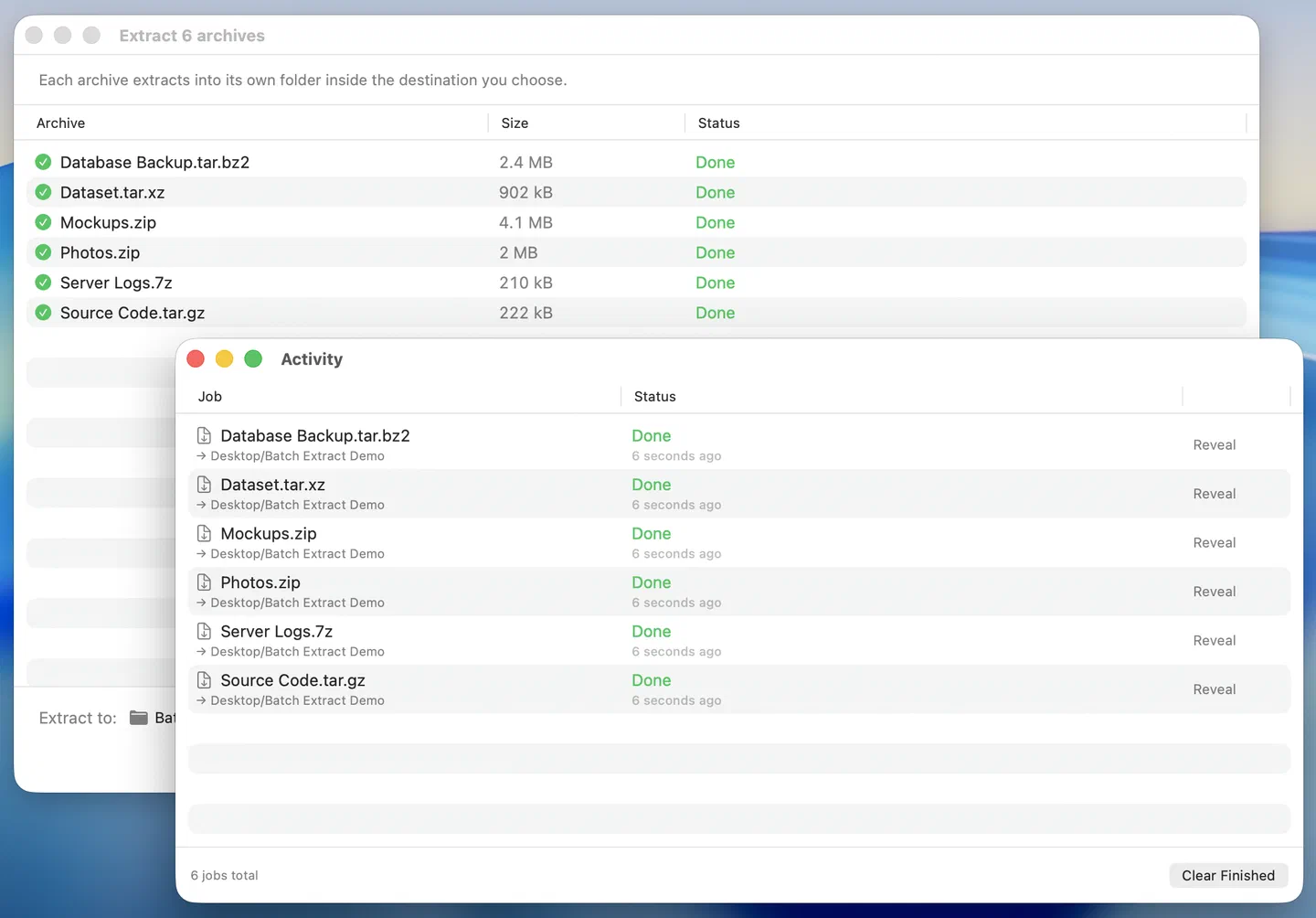
Drop two or more archives onto the Purrchiver dock icon (or the Welcome window) and Purrchiver opens a dedicated batch-extract window. The window lists every archive you dropped, lets you pick one destination folder for all of them, and works through them one at a time — marking each as completed as it goes.
When the batch window appears
Purrchiver shows the batch window only when every item you dropped is a recognized archive format (ZIP, RAR, 7z, tar, .tar.gz, .tar.bz2, etc. — see Format support).
If you drop a mix of archives and other files, Purrchiver assumes you want to compress everything together and opens a new compress window instead — same as single-file behavior.
Where the extracted files land
Each archive extracts into your chosen destination. If the archive
contains a single top-level folder (like photos.zip → photos/…),
the contents land in that folder directly under your destination. If
the archive contains loose files at the top level, Purrchiver wraps
them in a folder named after the archive so things stay tidy.
For example, dropping photos.zip (top-level folder photos/),
music.7z (loose top-level files), and backup.tar.gz (top-level
folder backup/) with destination ~/Downloads:
~/Downloads/photos/(from the archive’s own top-level folder)~/Downloads/music/(wrapped because the archive had loose files)~/Downloads/backup/(from the archive’s own top-level folder)
Encrypted archives in a batch
Encrypted archives in a batch are marked as failed in the queue with the password error inline — batch extract doesn’t prompt for passwords mid-run. The other archives in the batch continue normally.
To extract an encrypted archive, open it directly in Purrchiver (double-click in Finder, or drop it on the app by itself). The single-archive flow surfaces the password prompt and unlocks normally. After unlocking, you can drop the remaining unencrypted archives as a batch.
When the batch finishes
The window stays on screen with a summary of each row’s outcome (✓ done / ⚠ failed / – cancelled). Click Done to close. No post-completion popup, no surprise dialog — same as single-archive extract.
Canceling mid-batch
Click Cancel at any time. The currently-extracting archive is cancelled; the remaining queued archives are also marked Cancelled.
Archives that already finished stay on disk — cancellation doesn’t roll those back.
Watching progress in the Activity window
Batch progress is also surfaced in Purrchiver’s global Activity
window (Window → Activity, or ⌘0). Useful if you want to flip back
to the Welcome window or another archive while a batch runs in the
background — the Activity window keeps a live view of every queued,
running, and finished job in one place.
Dock badge during a batch
Purrchiver’s dock badge shows the count of non-terminal jobs across the whole app (Queued + Running) — every extract and compress, not just batch jobs. While a batch is running, you’ll see the remaining count tick down as each archive finishes; the badge clears when the queue is empty.
See Activity window → Dock badge for how this fits together with the Activity window’s job list.
Tips
- Drop a Finder selection of archives. Cmd-click several archives in Finder, then drag them all to the Purrchiver dock icon. Faster than opening Purrchiver first.
- Pick a sensible destination at the start of each batch. The destination picker doesn’t persist between batches — set it fresh when you open the batch window.
- Encrypted-in-batch is a known limitation. Batch extract doesn’t prompt for passwords mid-run. For encrypted archives, open them one at a time.
Related
- Extracting files — single-archive extract
- Drag and drop — drop targets across the app
- Encrypted archives
- Finder integration — right-click
Extract hereskips the batch window for the simple case - Activity window — global job-queue monitor that pairs naturally with batch runs