
The Activity window is Purrchiver’s global job monitor. Every extract and compress job — no matter which window started it, no matter which Space that window is on — shows up as a row here. Open it with Window → Activity or ⌘0.
Same pattern Apple uses for Mail’s Activity Monitor and Safari’s Activity window: one app-wide window that lets you see and cancel in-flight work without going back to whichever window kicked it off.
When it’s empty
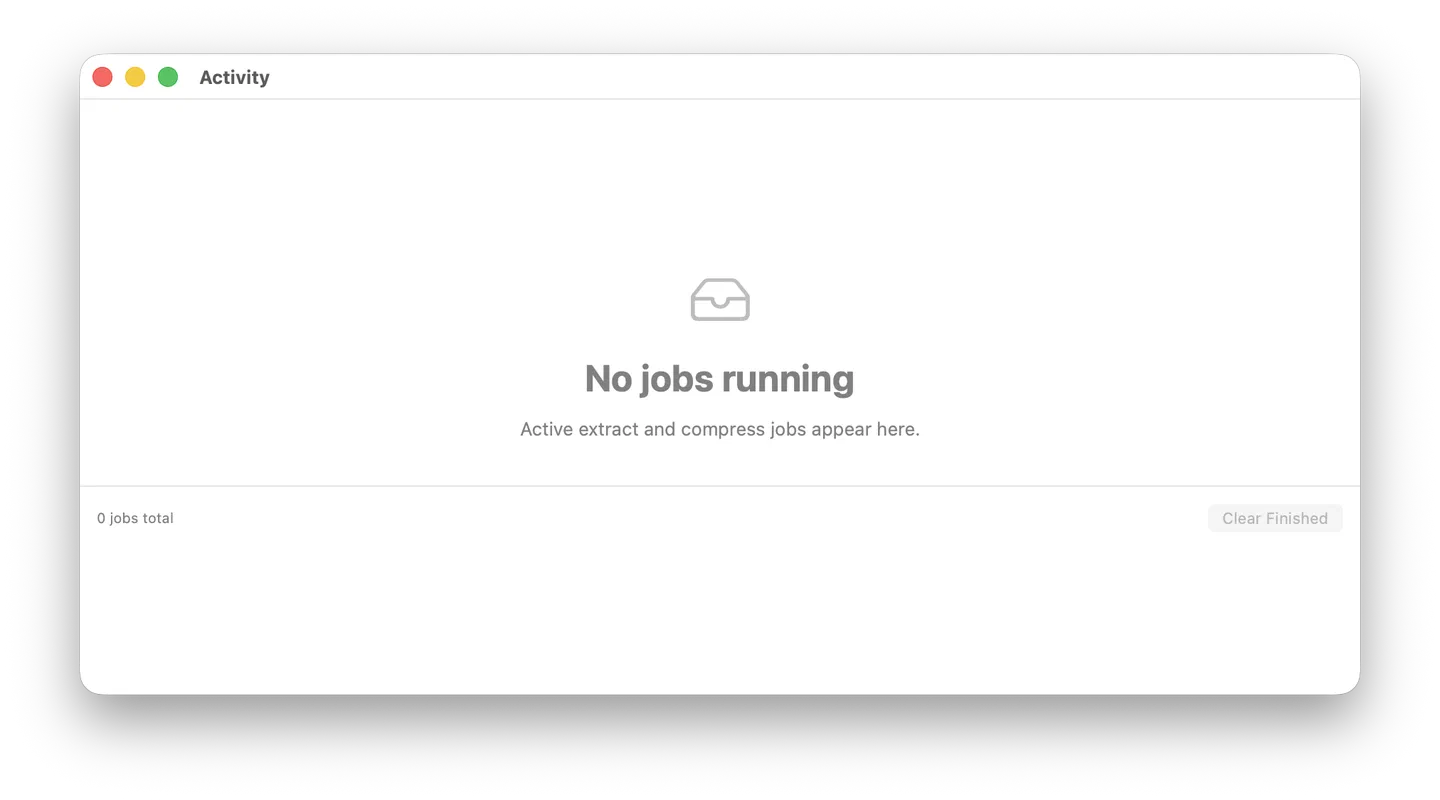
The empty state is what you see when there are no jobs in the queue — either you haven’t started any yet, or you cleared the finished rows. Note that completed jobs stay in the list (so you can Reveal the output or re-read an error) until you click Clear Finished, or until the auto-prune kicks in past 100 retained rows. The tray glyph and caption are the whole UI when the list is genuinely empty.
When there’s work in flight
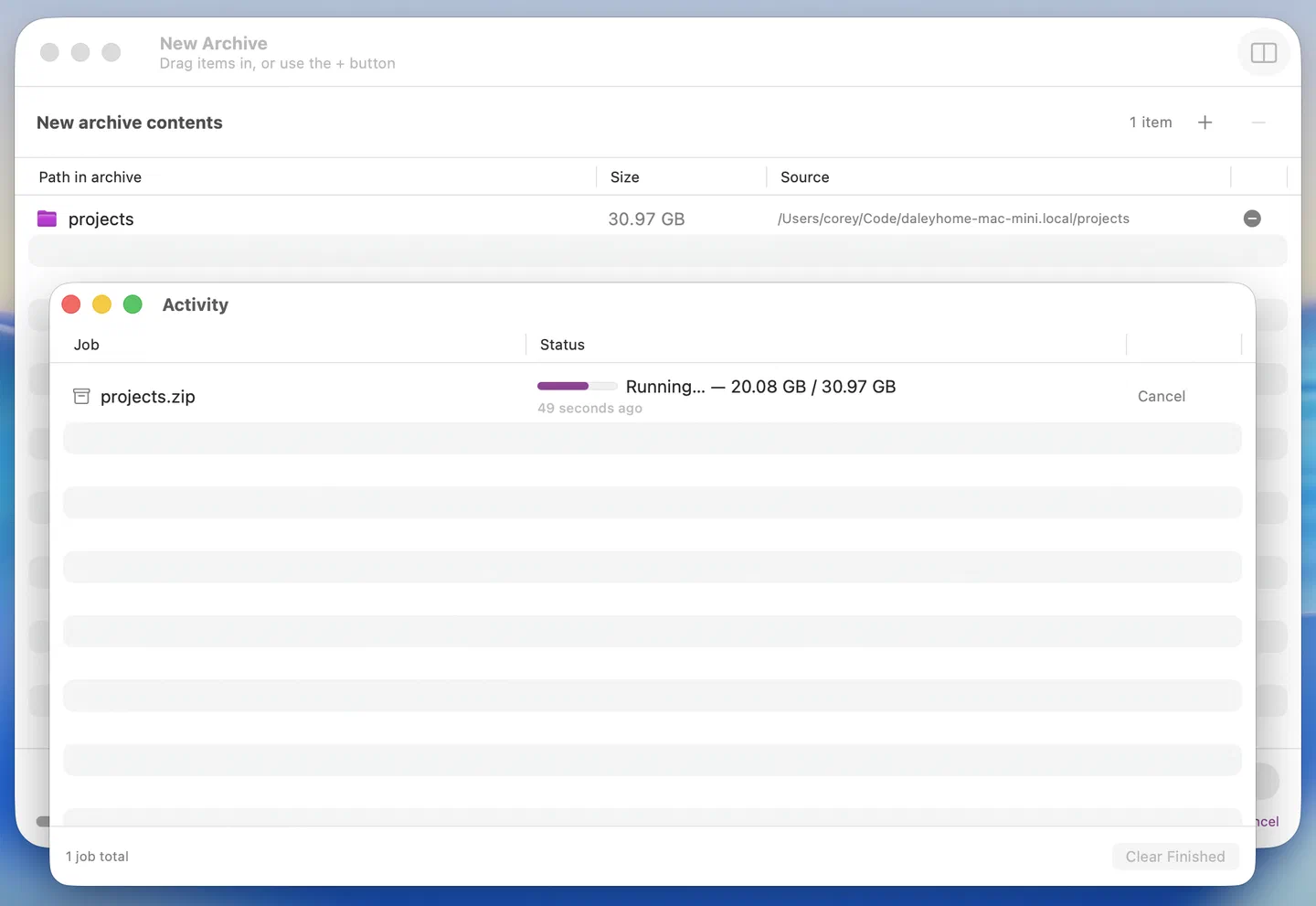
A running job’s row shows the Running… state with a Cancel button — a determinate progress bar once the total is known (the file count for extracts, the byte total for compresses), or a spinner until then. Once jobs finish, their rows turn green with the final count and a Reveal button:
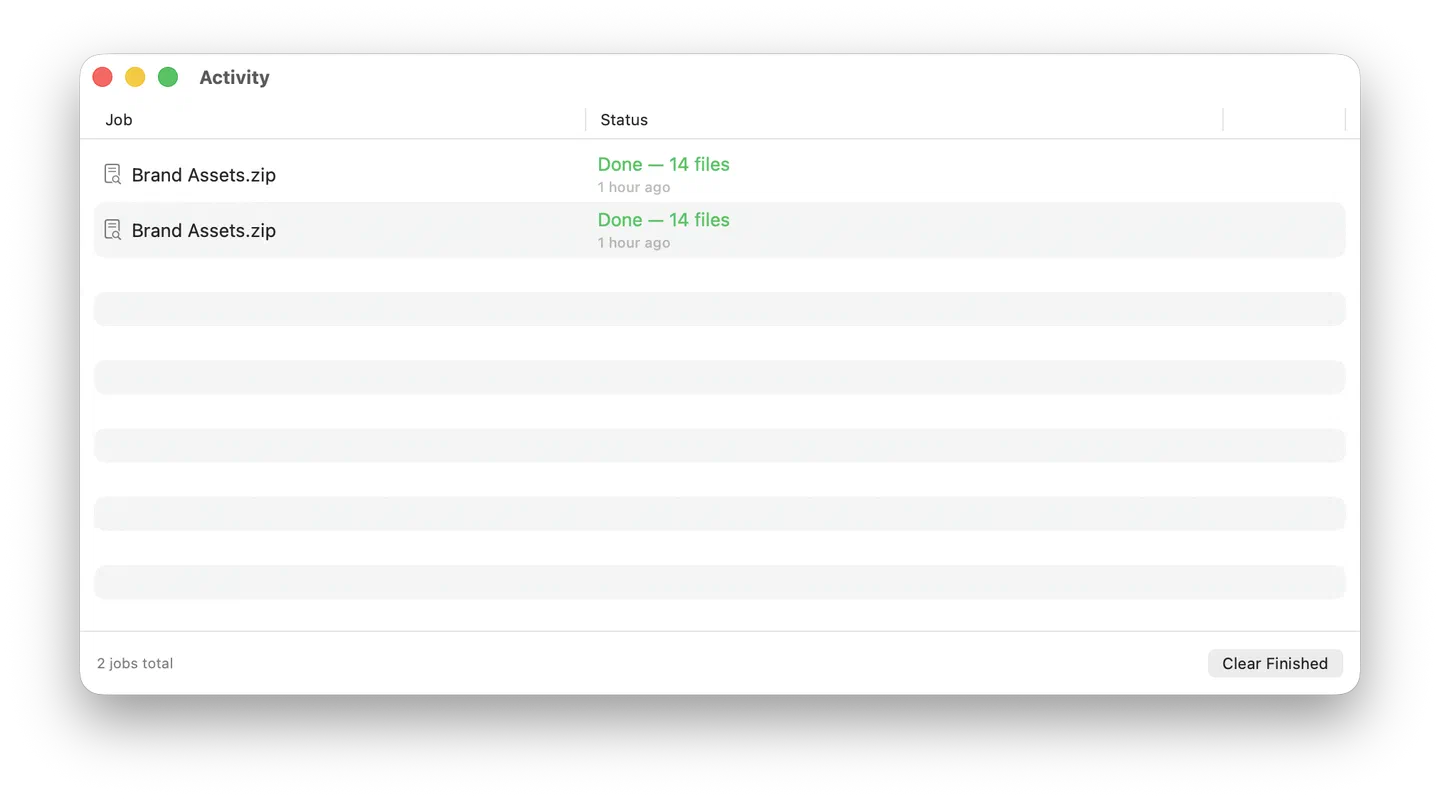
Each row is one job:
| Column | What it shows |
|---|---|
| Job | An icon for the kind of job (down-arrow doc for extract, archive-box for compress) and the archive’s display name. Extract rows add a subline showing the current entry being processed (Extracting: src/big/data-3.bin). Long names truncate in the middle so the extension stays visible. |
| Status | The job’s lifecycle state plus, for extract jobs where the total is known up front, a determinate progress bar and N/total files count. A relative timestamp (now, 5 min ago) sits below. See the state table for the color semantics. |
| (action) | A right-aligned button that changes with state: Cancel while the job is pending or running, Reveal once the job is done and produced a file Purrchiver can show in Finder. Failed and cancelled rows have no action button. |
The footer always shows the total count (N jobs total) and a Clear
Finished button that drops every terminal row at once. The button
is disabled when there’s nothing terminal to clear.
States
| State | Color | Meaning |
|---|---|---|
| Queued | secondary (grey) | Waiting for a free slot, or for a busy single-session engine lane (UnRAR / Apple Archive) to free up. Cancel is available. If others are ahead of it, the status shows the position — “Queued — 3 ahead.” |
| Running… | primary (default) | Currently being worked on. Both extract and compress jobs show a determinate progress bar when the total is known up front — extract uses the entry count (a live 47/312 files counter); compress uses total bytes (job.progress.totalBytes > 0). Only when the total isn’t knowable yet (e.g. streaming formats, or before byte totals are computed) does the indicator fall back to an indeterminate spinner. Cancel is available either way. |
| Done | green | Finished successfully — the count shows the final entry total (Done — 8 files). Reveal shows the result in Finder when applicable. |
| Error message | orange | Failed — the row shows the failure message inline (up to two lines, full text on hover). No action button — Clear Finished removes it. |
| Cancelled | secondary (grey) | You hit Cancel before it finished. No action button. |
Purrchiver runs several jobs at once, up to the “Maximum simultaneous operations” limit (Settings → Advanced; default Auto ≈ half your CPU cores), with at most one job per single-session engine (UnRAR / Apple Archive). That’s why “Queued” exists — a job is queued when it’s waiting for a free slot or for a busy engine lane. Set the limit to 1 if you want strictly serial behavior.
Cancelling a job
Click Cancel on the row. For a queued job that hasn’t started, cancellation is instant. For a running job, Purrchiver stops at the next safe boundary (current entry finishes writing, then the rest of the archive is skipped). Any files already written stay on disk — we don’t roll back partial extracts; finding nothing in your destination folder when you cancelled a 90%-done job would be worse than finding the partial result.
What gets cleared
Clear Finished removes every row in a terminal state (Done, Failed, Cancelled). Running and Queued rows are left alone. There’s no confirmation — clearing finished rows doesn’t undo anything, it just empties the visible history.
Purrchiver also self-trims: once you accumulate 100 terminal rows, the oldest get dropped automatically so the table doesn’t grow forever during long sessions.
Dock badge
Purrchiver’s Dock icon shows a badge with the count of non-terminal jobs (Queued + Running). Goes away when everything finishes. No sound, no notification — just the number.
If you turned General → Notifications on, you also get a single
banner per completed extract or compress job. The notification posts with sound=.default;
whether it actually plays a sound, shows on the lock screen, or uses
the banner vs. alert style is entirely yours to control in System
Settings → Notifications → Purrchiver. The Activity window is the
always-on surface; the banner is the optional poke.
What’s deliberately NOT here
- No percentage readout. The progress bar gives the proportion
visually; the running
N/totalcount gives the absolute. A literal73%would be either redundant or — for streams where the total isn’t knowable up front — actively misleading. Indeterminate spinners are honest about that uncertainty. - No pause/resume. Archive jobs are not pausable — pause would require holding open file descriptors, sandbox handles, and encryption keys for an indeterminate time. Cancel + re-run is the pattern.
- No “retry failed” button. Errors are usually permission or disk problems, not transient. Re-open the source archive (or re-stage the compress contents) and start a fresh job — the Activity row’s error message tells you what to fix first.
Related
- Batch extract — the Activity window is the natural place to watch a batch run to completion
- Keyboard shortcuts — ⌘0 is the Activity window
- Settings — General → Notifications toggles the per-job completion banner (extract / compress jobs)
- Privacy & security — the Activity window’s count is local-only; Purrchiver never sends job activity off your Mac